
Overview
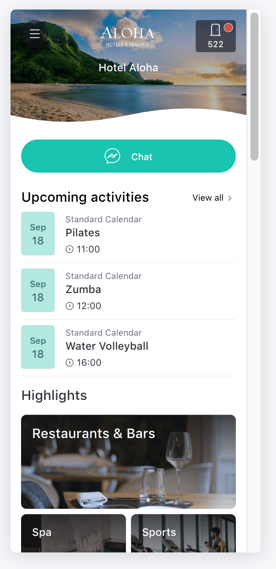
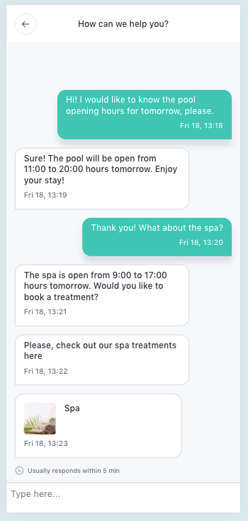
Concierge chat is a communication tool that allows guests to contact the property directly through the guest app during their stay.
You can offer a general Concierge chat for property-wide assistance, set up Concierge chat for specific services, or use both options depending on your property's needs.
Guests can use Concierge chat to ask questions and request assistance. Staff can manage these conversations from the CMS, staff app, or email notifications and provide guests with information and support throughout their stay.
Concierge chat is only available to logged-in guests with an active stay.
What can you do with the Concierge chat feature?
With Concierge chat, you can:
- Offer guests a direct communication channel
Allow guests to contact your property directly through the guest app during their stay. - Provide general or service-specific assistance
Set up a general chat for property-wide assistance and dedicated chats for specific services, such as restaurants or spas. - Customize each chat
Define guest-facing texts, availability hours, automatic responses, and the staff members responsible for managing conversations. - Control access to the general chat
Use room groups to define which guests can access the general Concierge chat and which staff members manage their conversations. - Manage conversations through different channels
Respond to guests from the CMS, staff app, or a simplified chat interface accessed through email notifications. - Share information with guests
Send hotel content and files directly through Concierge chat. - Manage guest needs from the conversation
Use the CMS to review guest information and activity and create requests or bookings without leaving the conversation.
Key benefits
- Direct guest communication
Provide guests with an easy way to contact the property from the guest app. - More personalized assistance
Direct service-related conversations to the staff members responsible for each service. - Flexible conversation management
Let staff respond from the CMS, staff app, or email notifications. - Relevant guest context
Access guest information and activity from the CMS to better understand and manage each conversation. - Centralized assistance
Keep guest communication, shared content, requests, and bookings connected to the same conversation.
How to access the Concierge chat feature
To access and manage Concierge chat:
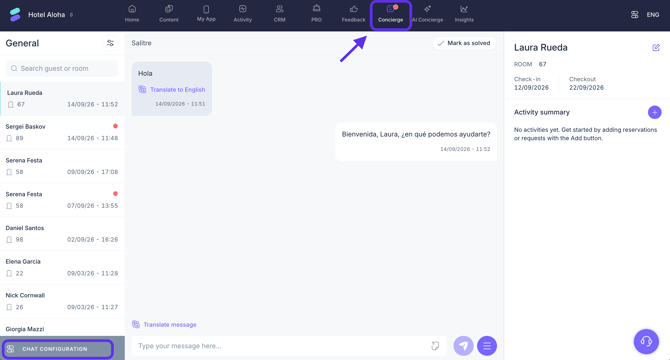
- Log in to the CMS.
- Go to Concierge.
From this section, you can review and manage guest conversations and access the general Concierge chat settings through Chat configuration.
To set up Concierge chat for a specific service, open the service in the corresponding CMS section and go to the Concierge chat tab.
Recommended learning path
To get the most out of Concierge chat, we recommend following these articles in order:
- How to set up Concierge chat for a property
Activate Concierge chat and define the general settings, availability, staff management, and guest access. - How to set up Concierge chat for a service
Learn how to activate and customize Concierge chat for individual services. - How to make Concierge chat visible to guests
Define how guests can find and access Concierge chat from the guest app. - How to manage Concierge chat conversations
Learn how staff can respond to guests and manage conversations from the CMS, staff app, or email notifications. - How guests use Concierge chat
Understand how guests access Concierge chat, send messages, and receive and respond to replies.
Next steps
Before making Concierge chat available to guests, decide whether you want to offer a general chat, chats for specific services, or both.
Then, continue with How to set up Concierge chat for a property to activate the feature and define its general configuration.
Need further assistance?
If you have additional questions or require further assistance:
- Contact us via live chat
- Send a ticket to our Support team
- Visit STAY Academy, our training platform