
Overview
Concierge chat allows guests to communicate directly with the property through the guest app during their stay.
Guests can use Concierge chat to ask questions, receive assistance, and communicate with the property or with the staff responsible for a specific service.
Depending on how you set up Concierge chat, guests can access a general chat or start a conversation related to a specific service.
This article explains how guests access and use Concierge chat in the guest app.
Before getting started
Before guests can use Concierge chat, make sure:
- Concierge chat is activated and set up for the property.
- The appropriate access points are visible in the guest app.
- Concierge chat is set up for individual services if you want guests to contact the staff responsible for a specific service.
- Guests have an active stay, as only logged-in guests with an active stay can access Concierge chat.
Step-by-step guide
Step 1: Access Concierge chat
Guests can access Concierge chat in different ways depending on whether they want to use the general chat or contact the staff responsible for a specific service.
Access the general Concierge chat
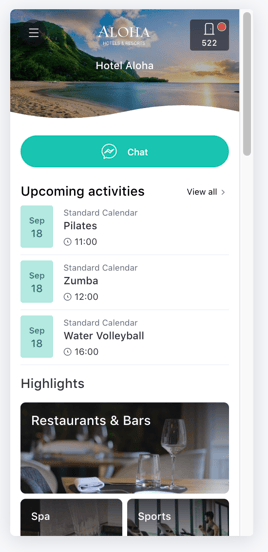
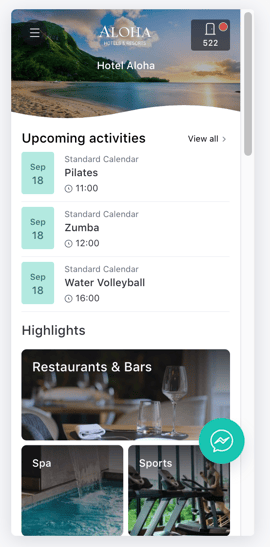
If you offer a general Concierge chat, guests can access it from the guest app home page through a widget such as:
- A shortcut.
- A floating bubble.
When guests tap the corresponding access point, Concierge chat opens.
Access Concierge chat for a specific service
If Concierge chat is activated for a specific service, guests can access it in two ways:
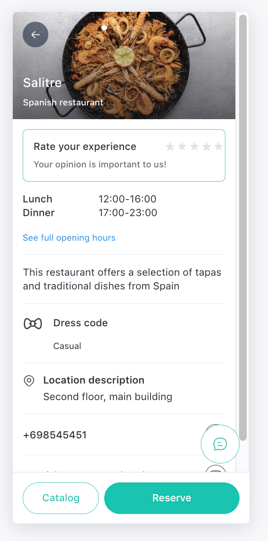
- From a specific service page: For example, if a guest opens a restaurant from a widget on the home page, a chat bubble appears on the right side of the service page. When the guest taps the bubble, Concierge chat for that service opens.
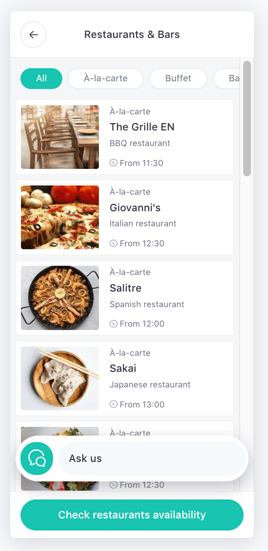
- From a service list: For example, if a guest opens a list of restaurants from the home page, a Concierge chat bubble appears at the bottom of the screen. When the guest taps it, the app displays services with Concierge chat enabled. The guest selects the service they want to contact to open its chat.
Step 2: Sign in to start a conversation
When guests try to access Concierge chat, the guest app prompts them to sign in.
Guests must enter their login information, accept the applicable terms and conditions, and complete the sign-in process.
Once signed in, Concierge chat opens in full-screen mode.
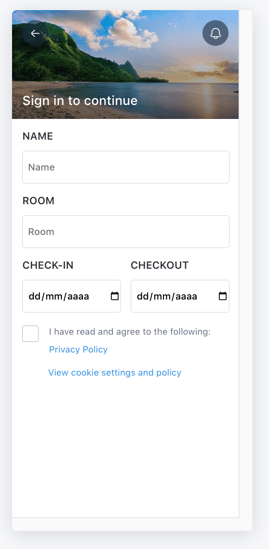
Note: Concierge chat is only available to guests with an active stay. Once their stay has ended, guests can no longer sign in to the guest app or access Concierge chat.
Step 3: Send a message
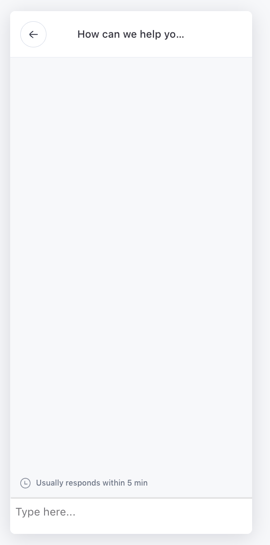
When guests open Concierge chat, they see the information you configured for that chat.
For example, the top of the screen may display a message such as How can we help you?
The response-time information you configured is also displayed above the message field, for example, Usually responds within 5 minutes.
To start a conversation, guests enter their message in the message field and tap Send (paper plane icon).
The response-time information remains visible while they use the chat.
Step 4: Receive and reply to messages
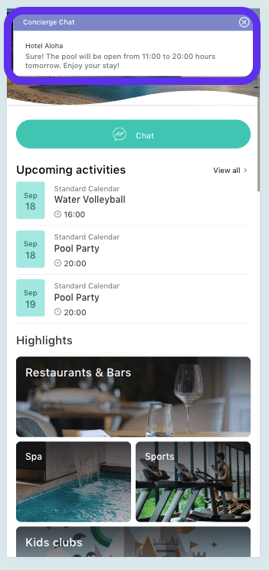
When the property or the staff responsible for the service replies, a notification appears at the top of the guest app showing the response.
Guests can access the new message in two ways:
- From the notification: Guests can tap the notification to open the Concierge chat conversation directly.
- From the profile menu: A red dot appears on the profile icon in the upper-right corner of the app. When guests tap the profile icon, a side panel opens. Guests can tap My Activity and select Concierge chat to open the conversation.
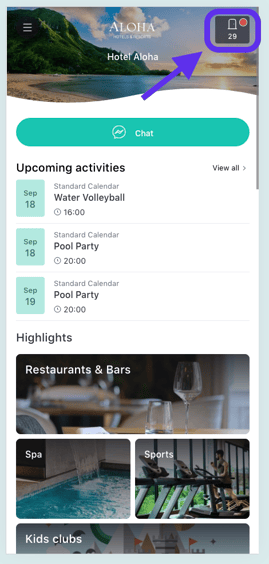
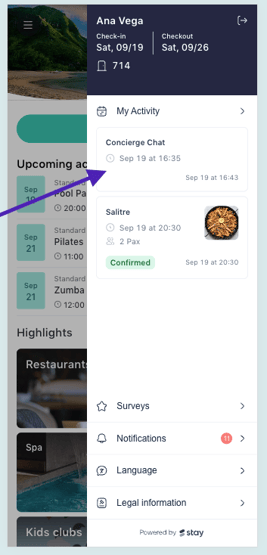
Once the conversation is open, guests can read the message and continue replying through the chat.
Step 5: Open shared files and hotel content
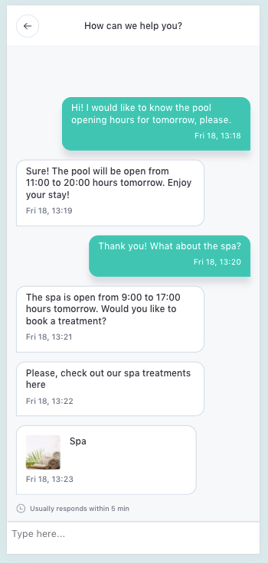
Staff can share files and hotel content with guests through Concierge chat.
When guests receive a file or hotel content in a conversation, they can tap it to open it and view the available information or details.
Step 6: Use Concierge chat outside service hours
Concierge chat may have specific availability hours depending on how you have set it up.
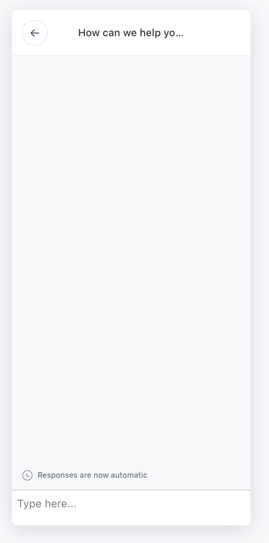
If you have activated automatic responses, guests who send a message outside the configured service hours receive the automatic response set for that chat.
For example, you can use this message to let guests know that a staff member will respond when the service is available again.
Next steps
Now that you understand how guests use Concierge chat, you can:
- Make sure Concierge chat is easy for guests to find by choosing the most appropriate access point in the guest app.
- Set up a general Concierge chat to provide assistance throughout the guest stay.
- Set up Concierge chat for specific services when guests need to contact the staff responsible for them directly.
- Learn how staff can respond to guests and manage Concierge chat conversations from the CMS, staff app, or email notifications.
Need further assistance?
If you have additional questions or require further assistance:
- Contact us via live chat
- Send a ticket to our Support team
- Visit STAY Academy, our training platform