
Overview
Once Concierge chat is activated and set up, you can make it visible to guests in the guest app.
How you make the chat visible depends on the type of Concierge chat:
- General Concierge chat: You need to add it to the front page using a widget. The most common options are a shortcut or a floating bubble.
- Concierge chat for a specific service: You do not need to add it manually. Once Concierge chat is activated for a service, it automatically appears on that service's page.
Before getting started
Before making Concierge chat visible to guests, make sure:
- Concierge chat is activated and set up for the property.
- If you want to make Concierge chat visible for a specific service, make sure the feature is activated and set up for that service.
- You have decided how you want the general Concierge chat to appear on the front page and which user types should see it.
Step-by-step guide
Option 1: Make the general Concierge chat visible
To make the general Concierge chat visible to guests, add it to the guest app home page using a widget. Follow these steps:
Step 1: Access the front page settings
- In the CMS, go to My app > Customize app.
- Click Edit app to open the front page settings.
Step 2: Add the general Concierge chat to the front page
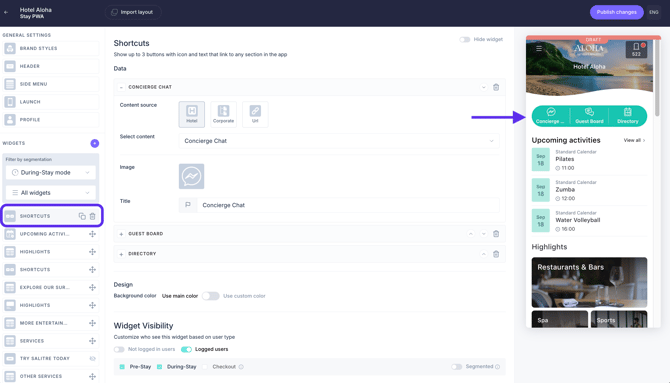
You can use different widgets to make the general Concierge chat visible on the home page. The most common options are Shortcuts and Floating bubble.
Add Concierge chat as a shortcut
- Click Add widget (+ icon).
- Select Shortcuts under Hotel content.
- Set up the shortcut and select Concierge chat as the linked content.
- Customize the widget as needed.
- Set the widget visibility to define who can see the general Concierge chat: not-logged-in users, logged-in users, or both.
- Save changes.
Add Concierge chat as a floating bubble
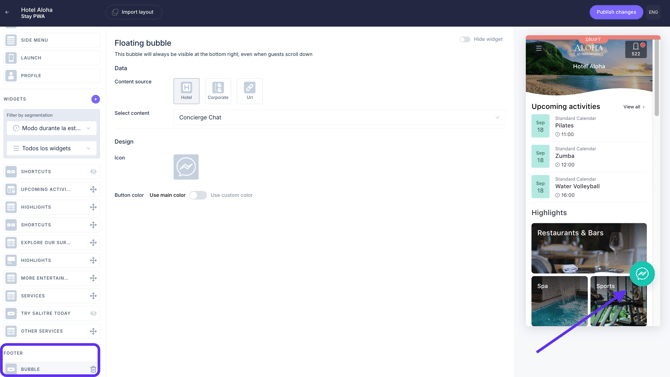
The Floating bubble remains visible at the bottom of the guest app, making Concierge chat easily accessible while guests navigate the app.
- Click Add widget (+ icon).
- Select Floating bubble under Footers.
- Select Concierge chat as the linked content.
- Customize the widget as needed.
- Set the widget visibility using the Hide widget toggle switch.
- Save changes.
You can also use other widgets that support links to app content to make Concierge chat visible on the home page. Learn more about the available options in How to customize the guest app: widgets.
Note: Widget visibility determines who can see the general Concierge chat. Guests must be logged in to interact with the chat.
Step 3: Review and publish the changes
- Review the home page to make sure Concierge chat appears as expected.
- Click Publish changes to make the updated home page visible to guests.
Option 2: Make Concierge chat visible for a specific service
You do not need to add Concierge chat for a specific service to the front page.
Important: Although you do not need to add Concierge chat itself to the home page, guests must be able to access the service where the chat is available. Make sure the specific service or its corresponding service list is linked from the guest app home page.
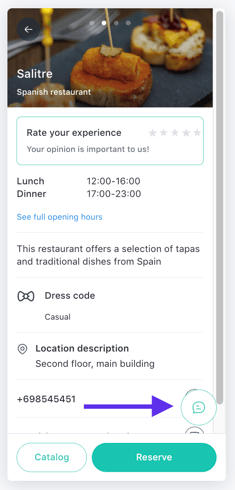
Once Concierge chat is activated and set up for a service, the chat button automatically appears on that service's page in the guest app.
The service Concierge chat is visible to all users. However, guests must be logged in to interact with the chat. If a not-logged-in user tries to use it, they will be prompted to sign in.
Concierge chat remains visible even outside the availability hours set for the service. Guests can still access the chat and will see the message set for when no agent is available.
Next steps
Once Concierge chat is visible to guests, you can:
- Check the guest app to make sure Concierge chat appears as expected.
- Set up Concierge chat for additional services.
- Learn how to manage guest conversations.
Need further assistance?
If you have additional questions or require further assistance:
- Contact us via live chat
- Send a ticket to our Support team
- Visit STAY Academy, our training platform