
Overview
Once Concierge chat is activated at property level, you can also set it up for specific services.
This allows guests to start a conversation directly from a service page in the guest app. Each service can have its own chat texts, availability, and staff members responsible for managing conversations.
Before getting started
Before setting up Concierge chat for a service, make sure you:
- Have activated and set up Concierge chat for the property.
- Know the days and hours when staff will be available to manage conversations about the service.
- Have the email addresses of the staff members who will manage these conversations.
- Prepare the texts that will be displayed to guests in the chat interface.
Step-by-step guide
Step 1: Access the service settings
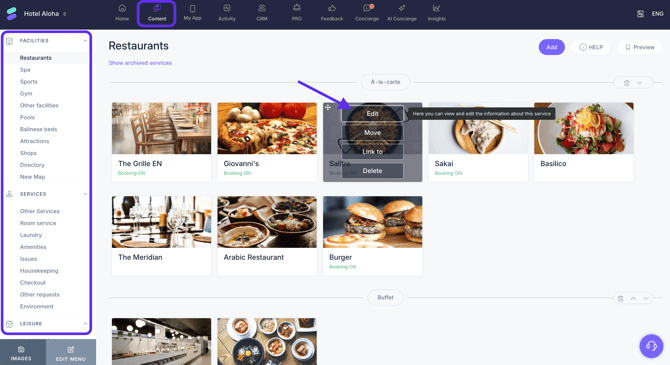
- In the CMS, go to the section where the service is located. For example: Content > Facilities > Restaurants.
- Find the service and click Edit.
- Go to the Concierge chat tab.
Step 2: Activate Concierge chat and customize the texts
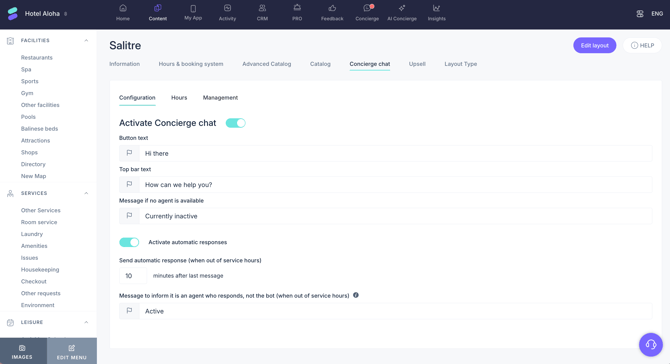
- Activate Concierge chat using the toggle switch.
- Customize the texts displayed to guests:
- Button text: Enter the text displayed on the button guests use to access the chat. The text can contain a maximum of 10 characters.
- Top bar text: Enter the text displayed at the top of the chat window.
- Message if no agent is available: Enter the message displayed when no staff member is available to manage the conversation.
- Add translations for the supported languages by clicking the flag icon.
- If needed, activate Automatic responses and set:
- The delay time for sending the automatic response after the guest's last message.
- The message informing guests that a staff member, rather than a bot, will respond when the chat is outside service hours.
- Click Save changes.
Step 3: Set the chat availability
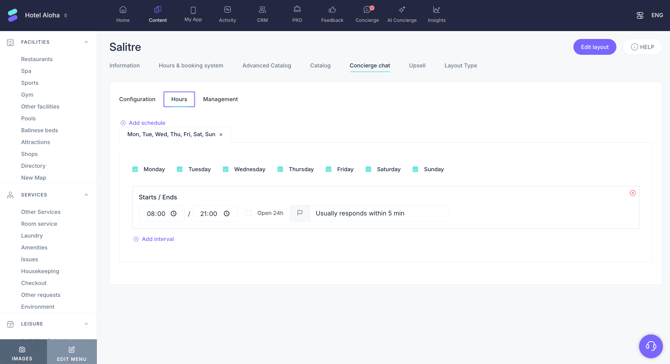
- Go to the Hours tab.
- Click Add schedule.
- Select the days of the week to which the schedule applies.
- Enter the start and end times in 24-hour format.
- If the chat is available throughout the day, select the Open 24h option.
- To create another time range for the same days, click Add interval.
- Add a brief description that will be displayed in the chat window, for example, "Usually responds within 5 minutes".
- Create additional schedules if availability differs by day.
- Click Save changes.
Step 4: Define who will manage the conversations
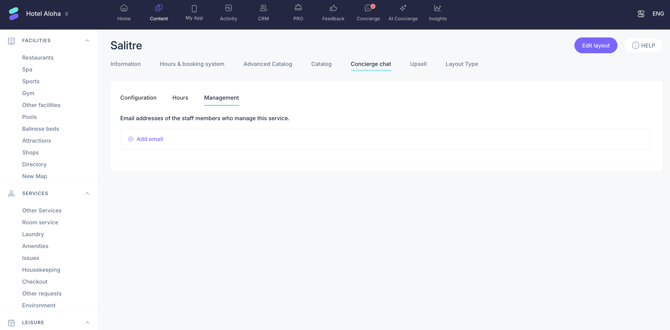
- Go to the Management tab.
- Click Add email to add the email addresses of the staff members who will manage conversations about the service.
- Add each email address individually.
- Click Save changes.
When a guest starts a conversation from this service, staff receive a notification in the CMS, in the staff app, and by email.
Next steps
Once Concierge chat is set up for the service, you can make it available to guests from the service page in the guest app.
You can also:
- Set up Concierge chat for other services.
- Make this service's Concierge chat available to guests in the guest app.
- Manage guest conversations from the CMS, the staff app, or through the link provided in the notification email.
Need further assistance?
If you have additional questions or require further assistance:
- Contact us via live chat
- Send a ticket to our Support team
- Visit STAY Academy, our training platform