
Overview
When a guest starts a conversation through Concierge chat, staff receive a notification in the CMS, in the staff app, and by email.
You can manage Concierge chat conversations in three ways:
- CMS: Access the full set of conversation management options, including guest information and activity.
- Staff app: Manage conversations from a mobile device, reply to guests, send files, and view basic guest information.
- Email notification: Access a simplified chat interface to quickly send a text reply.
This article explains how to manage guest conversations using each option.
Before getting started
Before managing Concierge chat conversations, make sure:
- Concierge chat is activated and set up for the property.
- The appropriate staff email addresses have been added to the Concierge chat settings.
- If you use the staff app, you have access with your CMS credentials.
Step-by-step guide
Option 1: Manage conversations from the CMS
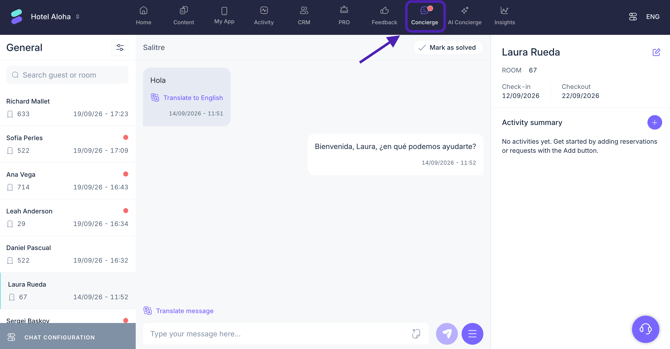
The Concierge section of the CMS provides the full set of tools for managing guest conversations and related activity.
Find and open a conversation
- In the CMS, go to Concierge.
- Use the conversation list to find the conversation you want to manage. For each conversation, you can see the guest's name, room number, and the date and time of the guest's message.
- Select a conversation to open it.
New conversations are identified by a red dot.
You can also filter conversations by:
- Status: Active or Solved.
- Service: General, Restaurants, Spa, etc.
- Group of rooms: Filter conversations according to the room groups set up for Concierge chat.
Note: You can view active or solved conversations, but not both at the same time.
Reply to a guest
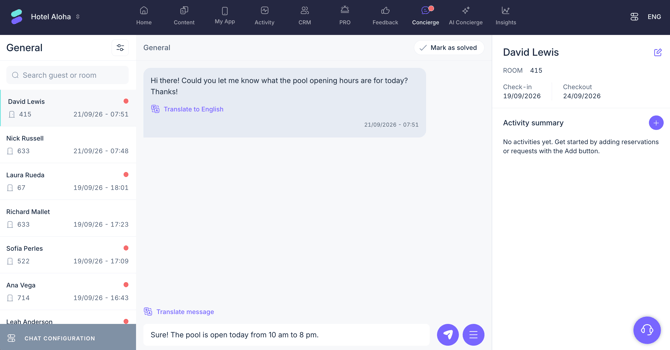
Once you open a conversation, you can review the messages exchanged with the guest and send a reply directly from the CMS. To do so:
- Type your message in the reply field at the bottom of the conversation.
- Translate it if needed.
- Click Send.
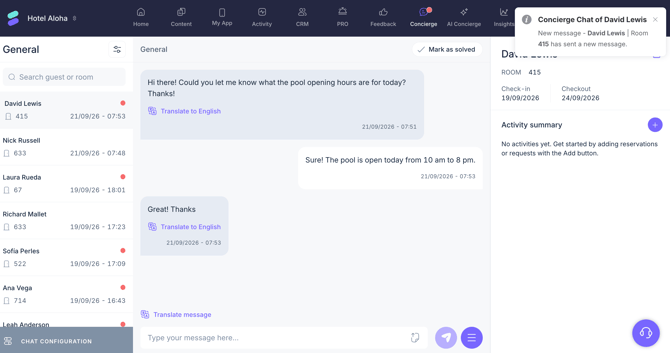
When the guest sends a new message, a notification appears in the CMS to alert staff that a conversation requires attention.
Share content and files
In addition to sending text messages, you can share content directly from the conversation.
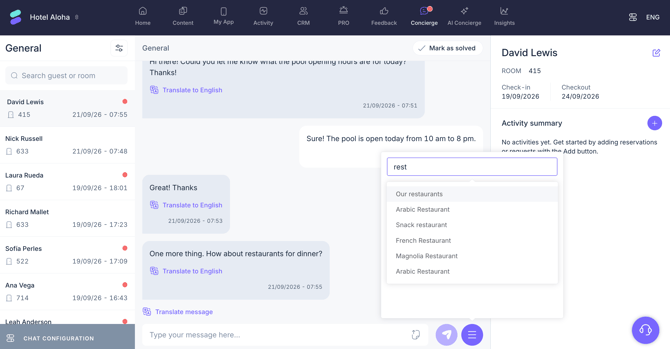
To share hotel content with the guest:
- Click the three-horizontal-lines icon next to the reply field.
- Start typing the name of the content you want to share or click the field to display the available options.
- Select the relevant content from the drop-down list.
You can share different types of hotel content, such as hotel information, facilities and services, or activity calendars.
To share a file with the guest:
- Click the Upload file icon in the reply field.
- In the upload box, either:
- Drag and drop the file into the box.
- Click the box to upload a file from your device.
- If uploading from your device, select the file you want to share.
- Confirm the upload.
- Click Send to share the file with the guest.
You can attach the following file types:
- Images: JPG, JPEG, or PNG — maximum file size: 1 MB.
- Documents: PDF — maximum file size: 5 MB.
Note: You can upload only one file at a time.
View and edit guest information
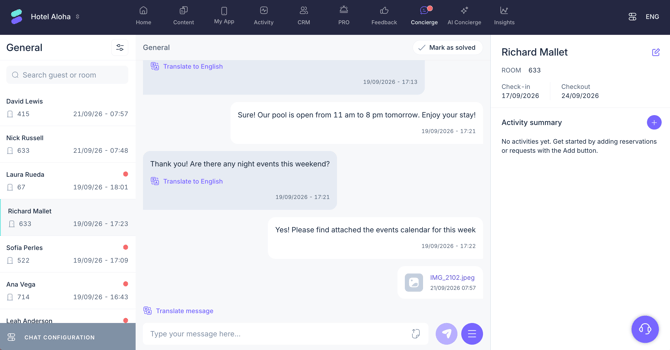
When a conversation is open, the panel on the right displays information about the guest, including:
- First and last name
- Room number
- Stay dates
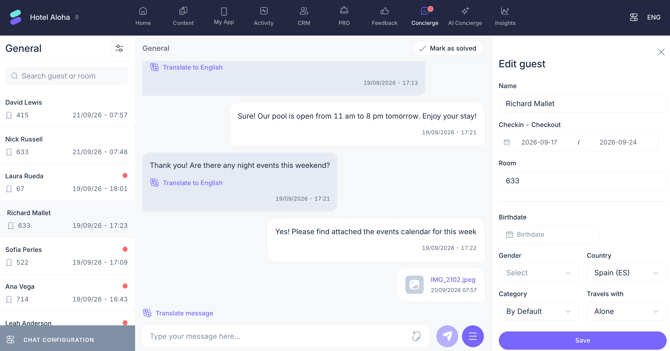
From this panel, you can also edit or add guest information, including:
- First and last name
- Check-in and checkout dates
- Room number
- Date of birth
- Gender
- Country
- Category
- Travel companions
To edit guest information:
- Click the Edit button (pencil icon).
- Add, edit, or delete the relevant details.
- Click Save.
View and manage guest activity
The panel on the right also displays a summary of the guest's activity, helping you understand the conversation context.
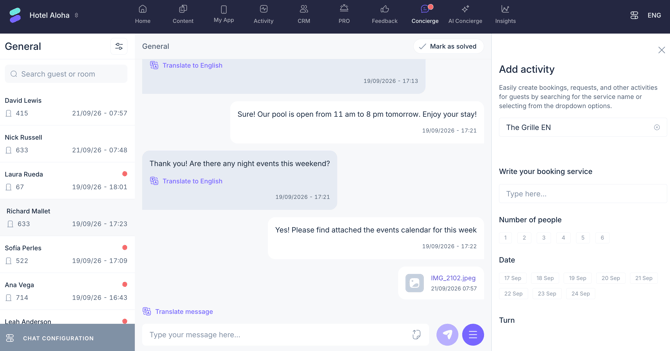
From this panel, you can review guest activity and add bookings, requests, and other available services for the guest directly from the conversation.
To add a new request or booking:
- Click the + icon.
- Type the name of the relevant service, or click the field to show the available options.
- Select the service from the drop-down list.
- Enter the required details for the request or booking.
- Save or confirm the action using the corresponding button.
- The new request or booking will appear in the guest activity panel.
Mark a conversation as solved
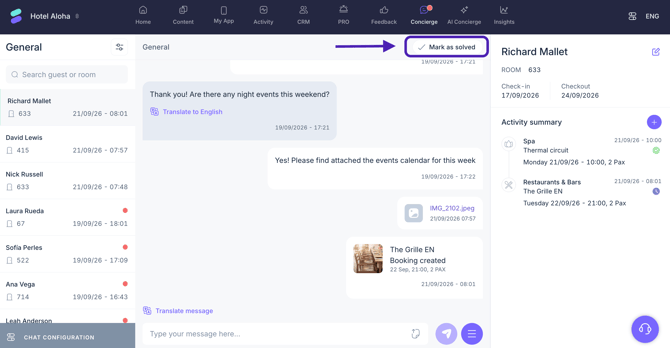
Click Mark as solved to mark the conversation as solved when no further action is required. When you mark a conversation as Solved, it no longer appears in the active conversations list.
To view solved conversations, filter the conversation list by Status > Solved.
To resume a solved conversation with the guest, open the conversation and click Solved – Reopen chat. The conversation will become active again, allowing you to continue the conversation with the guest.
Option 2: Manage conversations from the staff app
The staff app allows you to manage Concierge chat conversations from a mobile device.
Find and open a conversation
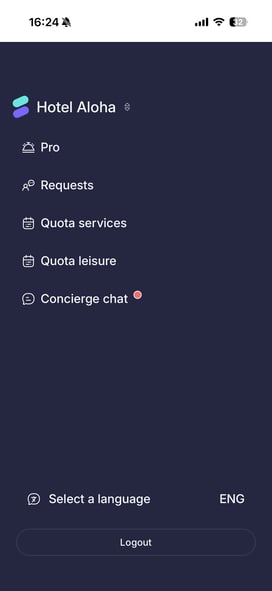
- Open Concierge chat in the staff app. If there are new conversations, the Concierge chat section in the main menu displays a red dot.
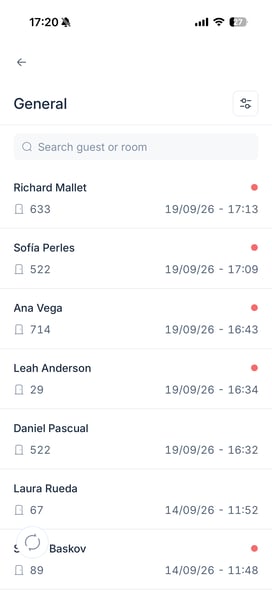
- Browse the conversation list. New conversations display a red dot.
- Tap a conversation to open it.
In the conversation list, use the search field to find a conversation by guest name or room number.
You can also tap the filter button and filter conversations by:
- Status: Active or Solved.
- Service: General, Restaurants, Spa, etc.
Note: You can view active or solved conversations, but not both at the same time.
Tap Reset to clear the selected filters or OK to apply them.
Tap the refresh button (circular arrows) to update the conversation list and display the latest conversations.
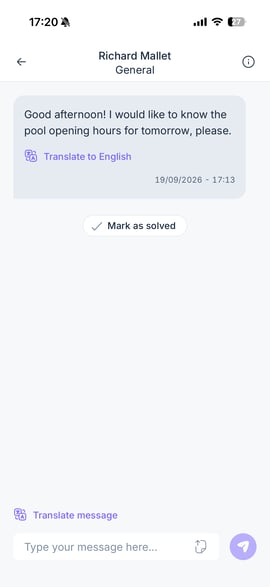
Important: At the top of the conversation, you can see the guest's name and the Concierge chat type. General appears for conversations started from the general Concierge chat, while service-related conversations display the name of the specific service.
Reply to messages
When you open a conversation, you can read the guest's messages and see the date and time they were sent.
To reply to a guest:
- Tap Translate to English to translate a guest message if needed.
- Enter your response in the reply field.
- Use the translation option for your response if needed.
- Tap Send to send your message.
Send files
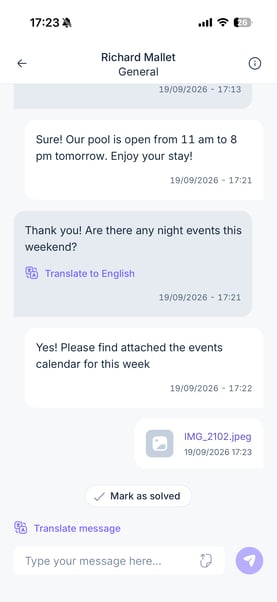
You can also attach files to your response. To do so:
- Tap the Upload file icon in the reply field.
- Tap the upload box.
- Choose one of the available options:
- Select a file from your device.
- Select a photo from your device.
- Take a photo or video using your device's camera.
- Select or capture the file you want to share.
- Confirm the upload.
- Tap Send to share the file with the guest.
The supported formats and maximum file sizes are:
- Images: JPG, JPEG, or PNG — maximum 1 MB.
- Documents: PDF — maximum 5 MB.
Note: You can upload only one file at a time.
View guest information
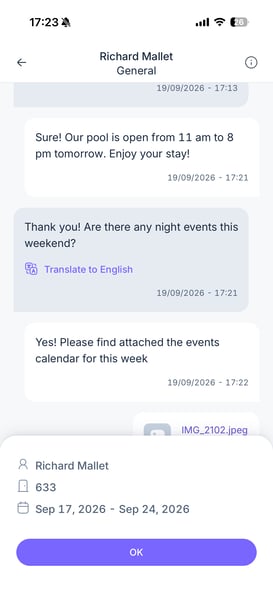
Tap the information button (i icon) in the upper-right corner of the conversation to view:
- Guest's first and last name.
- Room number.
- Stay dates.
Mark a conversation as solved
Tap Mark as solved to mark the conversation as solved when no further action is required. The conversation will no longer appear in the active conversation list.
To view it again, filter the conversation list by Status > Solved.
To resume a solved conversation with the guest, open the conversation and tap Solved – Reopen chat. The conversation will become active again, allowing you to continue the conversation with the guest.
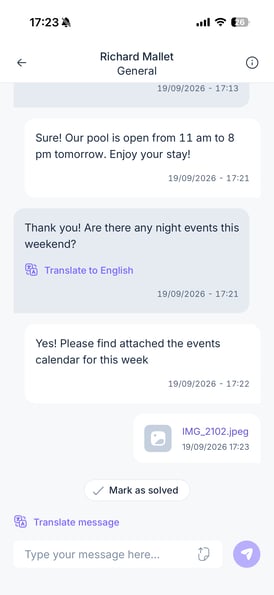
Important: The staff app does not allow you to edit guest information, view the guest's full activity, or create requests and bookings from a conversation. Use the Concierge section of the CMS to perform these actions.
Option 3: Reply to conversations from email notifications
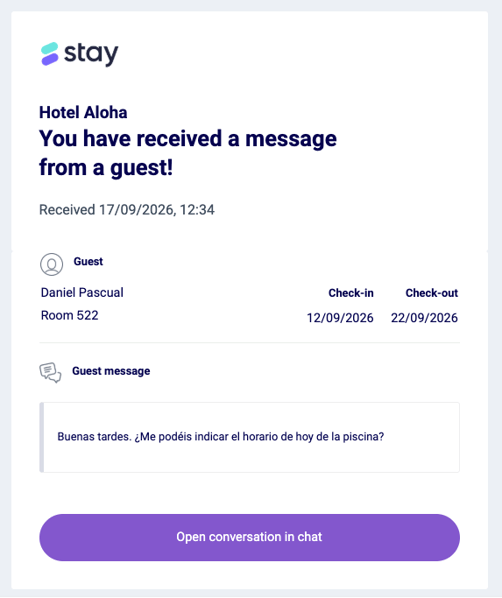
When a guest starts a conversation, the staff members assigned to manage the chat receive an email notification.
The email includes a preview of the guest's message and provides quick access to a simplified chat interface.
To reply:
- Open the email notification.
- Click Open conversation in chat.
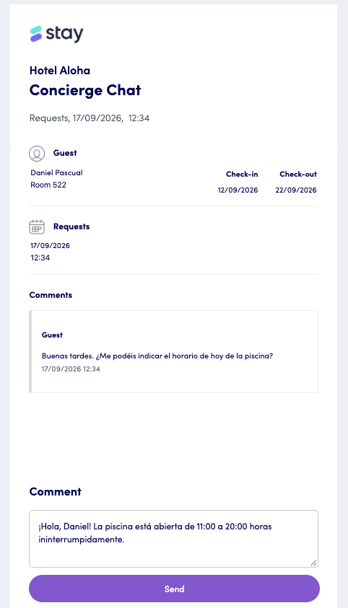
- In the chat interface, review:
- The guest message you are replying to.
- Guest name.
- Room number.
- Stay dates.
- Date and time of the guest's message.
- Enter your response.
- Click Send.
Important: This interface only allows you to send text replies. You cannot attach files or share hotel content. For additional conversation management options, use the CMS or staff app.
Note: Regardless of how you access and manage a Concierge chat conversation, if the guest has already completed their stay, the conversation is no longer active. When you open it, the following message appears: “The guest has completed their stay. The chat is no longer active.”
Next steps
Once you know how to manage Concierge chat conversations, you can:
- Choose the most appropriate management option depending on the actions you need to perform.
- Review and respond to active guest conversations.
- Use the CMS when you need to manage guest information or activity.
- Learn how guests use Concierge chat from the guest app.
Need further assistance?
If you have additional questions or require further assistance:
- Contact us via live chat
- Send a ticket to our Support team
- Visit STAY Academy, our training platform