
Overview
The staff app is the mobile version of the CMS designed specifically for hotel teams. It allows staff members to manage reservations, orders, requests, and guest conversations directly from a mobile device — anytime, anywhere on the property.
From replying to a Concierge chat message to updating a spa booking, managing an activity reservation, or handling a restaurant request, everything can be managed instantly from a smartphone. This enables faster execution, better prioritization, and a more agile day-to-day operation.
This article explains what the staff app is and what tools are available in the mobile version of the CMS.
Before getting started
Before using the staff app, make sure that:
- You have an active CMS user account.
- You use the same login credentials as the CMS desktop version.
- You have added (anchored) the STAY staff app to your smartphone’s home screen. Learn how in this article.
Note: The staff app supports the same login methods as the CMS:
- Single Sign-On (SSO)
- Username and password
- Social login (Google or Microsoft)
Important:
- Access and visibility depend on your user type and permissions. Depending on your role, you may see more or fewer services and features. In this article, we describe the full functionality available.
- If your user profile has access to multiple hotels, you will see a hotel selector menu (top of the screen). The services and data displayed will depend on the selected hotel and your permissions within that property.
- Once you have added (anchored) the STAY Staff app to your smartphone’s home screen, you can access it directly from the STAY Staff app icon.
Key benefits
The staff app helps your team:
- Manage reservations, orders, and requests on the go
- Receive and prioritize guest interactions in real time
- Respond faster without being tied to a fixed workstation
- Improve operational efficiency across departments
- Deliver a more agile and efficient daily workflow
By putting operational control directly in staff members’ hands, hotels can reduce delays and improve guest satisfaction.
What can you manage from the staff app?
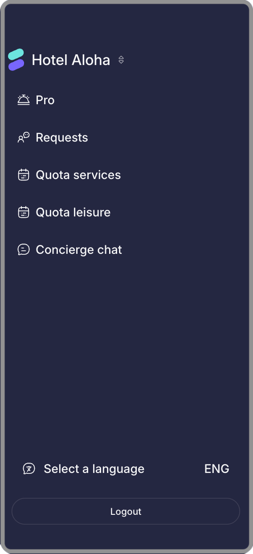
The responsive staff platform allows you to:
- View and manage reservations and orders for services using the PRO booking system
- View and manage requests for services using the on-demand booking system
- View and manage reservations for services using the quota-based booking system
- View and manage reservations for activities using the quota-based booking system
- Manage guest conversations through Concierge chat
Note: The STAY staff app includes a language selection menu that allows staff to use the platform in different languages.
Managing reservations and orders for services using the PRO booking system
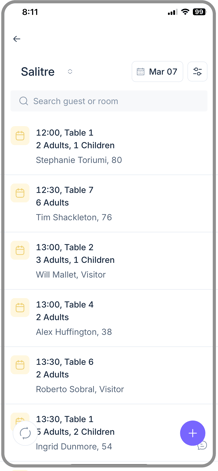
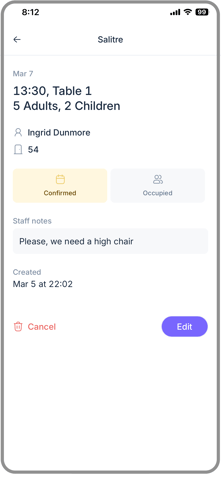
To manage reservations and orders for services using the PRO booking system, tap the PRO button in the staff app menu, then select the corresponding service from the drop-down menu.
For services with a PRO booking system, you can:
- Check the reservation list for a specific date
- Search by guest name or room number
- Use filters to search and organize the reservation list
- Update a reservation’s status (Confirmed/Occupied)
- Edit a reservation (Edit button)
- Cancel a reservation
- Add a new reservation (plus icon)
You can use the refresh button (circular arrows icon) at the bottom left of the screen to update the list anytime.
Managing requests for services using the on-demand booking system
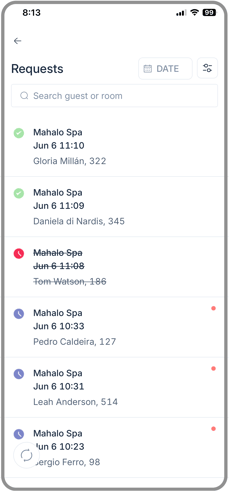
To manage requests for services using the on-demand booking system, tap the Requests section of the staff app menu.
For services with an on-demand booking system, you can:
- Check the requests list for a specific date
- Search by guest name or room number
- Use filters to search and organize the reservation list
- Approve a request
- Reject a request
- Edit a request (pen icon)
- Send a message to a customer from their request screen (Messages tab)
Note: You cannot create new requests for on-demand services, just like in the desktop CMS.
You can use the refresh button (circular arrows icon) at the bottom left of the screen to update the list anytime.
Managing reservations for services using the quota-based booking system
To manage reservations for services using the quota-based booking system, tap the Quota services button in the staff app menu.
For services with a quota-based booking system, you can:
- Check the reservations list for a specific date, organized by times
- Search by guest name or room number
- Use filters to search and organize the reservation list
- Update a reservation’s status (Attended checkbox)
- Edit a reservation (Edit button)
- Cancel a reservation
- Add a new reservation (plus icon)
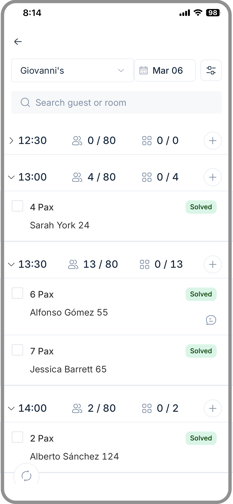
This allows staff to quickly review daily activity, make adjustments in real time, and react immediately when needed.
Managing reservations for activities using the leisure quota booking system
To manage activity reservations, tap the Quota leisure button in the staff app menu.
The Quota leisure section allows staff to manage reservations for activities created in the Activities calendar feature.
When accessing the Quota leisure section, you can:
- View the reservations list for a specific date, organized by activity, after selecting the calendar from the dropdown menu
- View the occupancy and maximum quota for each activity time slot
- Search for a reservation by guest name or room number
- Open a reservation from the list to view its details
- Cancel a reservation
- Add new reservations to an activity, even after the activity has already started
Reservations can be canceled either by the guest or by a staff member. The reservation details indicate who performed the cancellation.
Note: Leisure quota reservations cannot be edited. They can only be canceled.
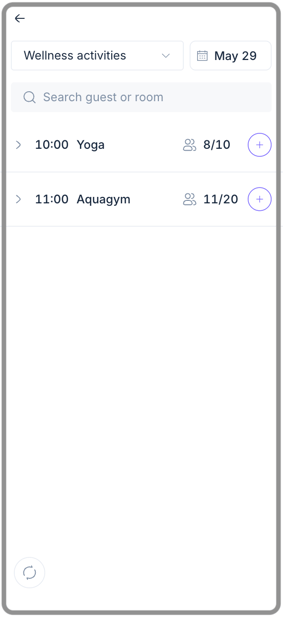
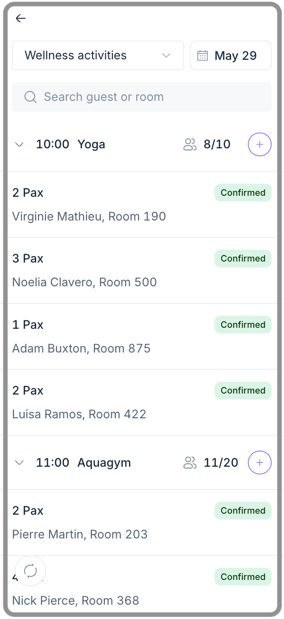
This allows staff to manage participation in activities and handle last-minute operational changes directly from their mobile devices.
Using Concierge chat
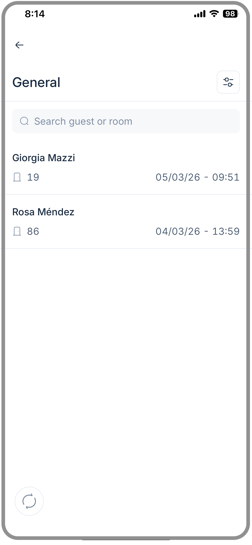
From the staff app, you can manage guest conversations through Concierge chat.
You can:
- Check the conversations list
- Filter conversations by status or service
- Search by guest name or room number
- Open a new chat with a guest
- Respond to a new message
- Use the message translation feature to better communicate with guests. Messages are automatically translated into the language selected in the STAY staff app when it differs from the original language of the message.
- Mark a conversation as solved
- Share files (such as images, PDFs, or Excel files)
You can use the refresh button (circular arrows icon) at the bottom left of the screen to update the list anytime.
This helps your team respond faster and manage ongoing conversations efficiently.
Desktop-only configurations
The STAY staff app is designed for operational management on the go. While staff can manage reservations, requests, and guest conversations from their mobile devices, service configuration must be done in the desktop CMS.
This means that service settings and setup can only be configured or edited from the CMS desktop version. Once services are configured there, staff can manage their daily operations directly from the staff app.
Notifications
Even after leaving the platform, you can continue receiving notifications on your smartphone or tablet. To ensure you don’t miss important updates, make sure push notifications are enabled on your device.
To receive push notifications, you must add the desktop CMS to your device's home screen. Follow these steps:-
- From a mobile device open the commonly used browser (e.g., Google Chrome, Safari, etc.).
- Enter the following URL in the navigation bar: https://cmshotel.stay-app.com/login
- Tap the Share icon.
- Select Add to home screen.
- Tap Add (top right)
- Once you add and open the app from your home screen, a screen will appear asking you to enable push notifications. Make sure to accept it to start receiving notifications.
Note: The steps are the same for IOS or Android. The only difference is the "Share" icon. While on iOS it is the icon with the arrow at the bottom of the screen, on Android it is the three-dot menu in the top right corner.
Note: Tablets (regardless of their operating system) will always display the desktop CMS interface rather than the mobile staff app view.
Next steps
Now that you know what the staff app offers:
- Add it to your device’s home screen for quick access (if you haven’t yet).
- Train your team to manage bookings and chats directly from their mobile devices.
- Use filters and real-time updates to stay on top of daily operations.
Need further assistance?
If you have additional questions or require further assistance:
- Contact us via live chat
- Send a ticket to our Support team
- Visit STAY Academy, our training platform