
Overview
Once the activities calendar is created, the next step is to create the activities for that calendar. For instance, a Wellness calendar may include activities such as Pilates, Yoga, Nature hikes, or Beach soccer.
This article explains how to create and configure these activities, providing guests with all the necessary details, locations, and reminders.
Before getting started
Before creating activities, please consider the following:
- Ensure access to the CMS: Content > Leisure > Activities calendar.
- Confirm at least one calendar has already been set up.
- There are two ways to create activities: Manual activity creation, which involves setting up each activity individually in the CMS, and Bulk upload, which is performed by the Support team upon receiving a spreadsheet with the activity data. This article provides the steps for both options.
- Have the name, description, images and other additional information for each activity ready before starting the process.
Step-by-step guide
Option 1: Manual activity creation
Step 1: Create an activity
- Select Activities calendar from the left-side menu under Leisure.
- Select the specific calendar and click the Edit button.
- Once inside the calendar, click on the Activities list tab.
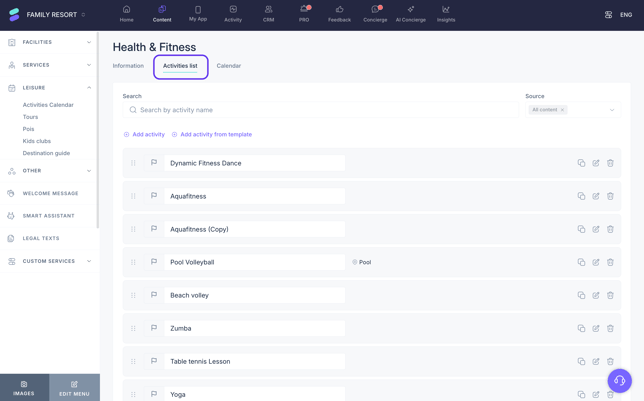
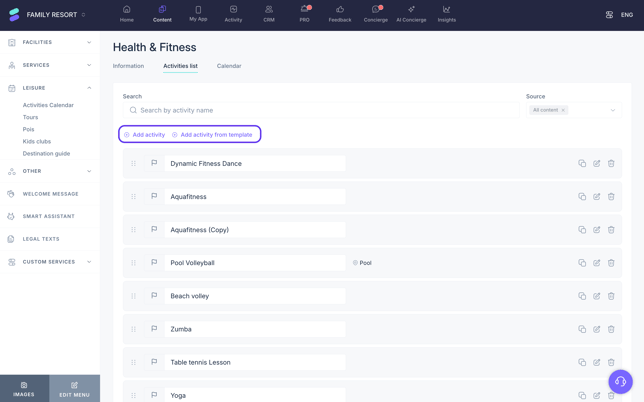
- To create a new activity, click Add activity. There is an option to create an activity from scratch or use a template. Templates come with pre-configured names, images, and tags.
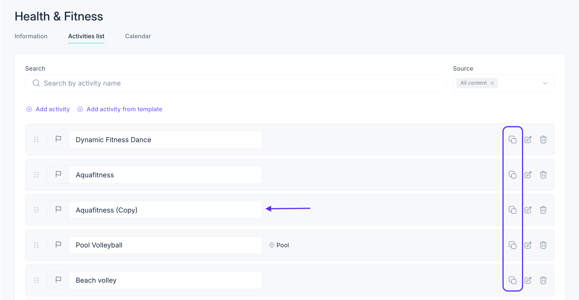
Note: You can duplicate any activity of the Hotel property type (meaning it is not a corporate activity) while maintaining the same settings:
- Search for the activity you need to duplicate (you can use the activity search bar to find it more easily).
- Click on the Copy icon.
- The new activity will appear directly below, with the original name followed by "+ copy".
- Proceed to make the necessary edits.
Step 2: Fill in the activity information
- Enter the name of the activity (e.g., "Yoga").
- Click Save. The activity will now appear in the list.
- Click the Edit button on the activity to access the detailed configuration and navigate to the Information tab to fill in the rest of the information.

- Add a description. Ideally, this text should be between 80 and 100 characters.
- Set up reminders. Set how many minutes in advance guests should receive a notification.
- Add images.
- Set up the location. Specify where the activity takes place. Choose between:
- Existing facility: Select a facility (e.g., the gym) from the dropdown menu.
- Map point: Choose a specific location on the map for areas outside the standard facilities (e.g., the beach).
- None: No location will be displayed for the activity.
Note: The location will appear within the activity in the Activities list table.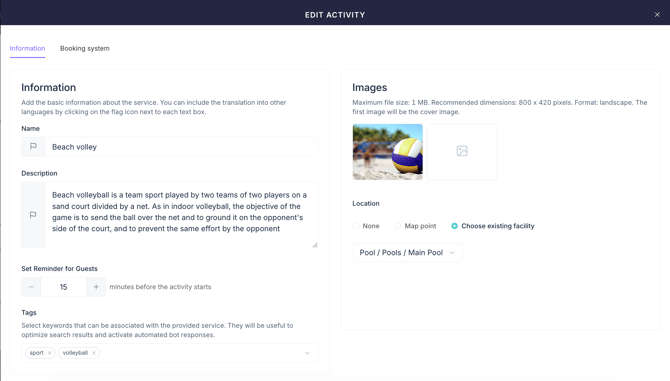
- Add additional information. Use the Add additional info button to enrich the activity profile with specific modules:
- Title and description: Add customizable text boxes and icons.
- Bullet list: Highlight key points or requirements.
- Dress code: Inform guests of any attire requirements.
- Location description: Provide specific directions (e.g., floor number).
- Contact details: Add a Website, Email, or Phone number (including country code).
- Audiovisual content: Include a Video URL, YouTube link, or a Virtual tour.
- URL list: Provide multiple links of interest.
- Click save.
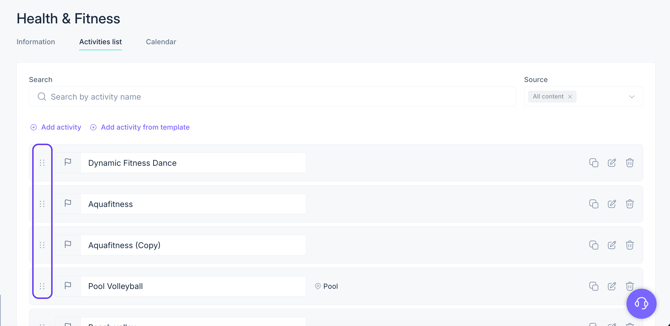
Note: As you create different activities, keep in mind that you can use the drag-and-drop tool to prioritize those you use most by moving them to the top of the list. This tool is designed to make activity management and editing easier for the staff.
To move an activity, simply click on the dots icon located to the left of the activity name and drag it up or down.
Step 3: Edit an activity
It may happen that after creating an activity, you need to make changes to its configuration. You can modify all settings at any time. To make these changes:
- Search for the activity. You can use the activity search bar at the top or the Source filter, which allows you to filter between activities created at the hotel level (Hotel property) or at the corporate level (Corporate).
- Click the Edit button on the activity to access the detailed configuration.
- Navigate to the Information tab to change the corresponding settings.
- Click Save.
Option 2: Bulk upload via Support team
Review this article for instructions on how to create and schedule activities with the assistance of the Support team.
Next steps
After completing the activity information, the next step is to configure the Booking system if the activity requires a reservation. If no booking is required, proceed to schedule the dates and times for the activity.
Need further assistance?
If you have additional questions or require further assistance:
- Contact us via live chat
- Send a ticket to our Support team
- Visit STAY Academy, our training platform.