
Overview
This article explains how to set up the quota-based booking system to manage activities with a limited number of attendees.
The system manages a maximum number of bookings, ensuring that reservations are accepted until the capacity (quota) is reached. Once the limit is met, no additional bookings will be allowed for that specific time.
Before getting started
Before setting up this system, please consider the following:
- Ensure access to the CMS: Content > Leisure > Activities calendar.
- The booking system is set per activity, not for the entire calendar. Each activity requires its own configuration.
- Gather all necessary details, including the quota per activity, the price (optional), the required advance booking time, and the email addresses of the staff members who will receive notifications for each booking.
- Remember that bookings are automatically confirmed whenever available spots remain.
Step by step guide
Step 1: Access the activity settings
- Select Activities calendar from the left-side menu under the Leisure section.
- Select the specific calendar and click the Edit button.
- Click on the Activities tab to see the list of activities.
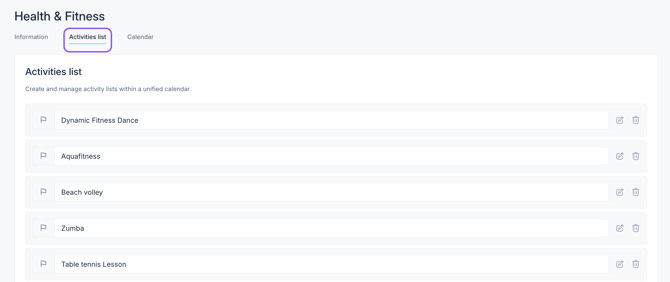
- Look for the activity that requires this set up and click the Edit (pencil icon) button.

Step 2: Enable the quota-based booking system
- In the pop-up window, navigate to the Booking system tab.
- Select the option Quota.
- Click Save.
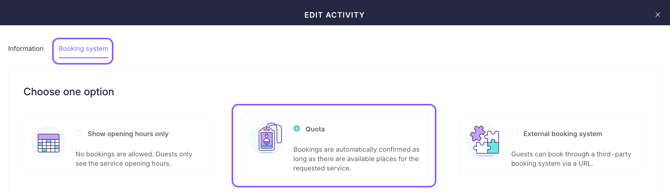
Note: In this mode, bookings are automatically confirmed as long as there are available places for the requested activity.
Step 3: Set up the quota and price
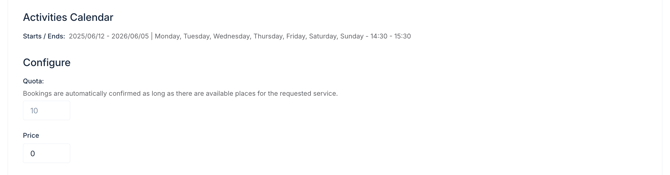
Once the system is selected, configure the following fields:
- Quota: Enter the capacity for the activity. For example, if this is set to 10, the system will allow up to 10 users to make reservations.
- Price: Enter the price for each booking or individual spot, if applicable.
Step 4: Configure advanced options
To access additional options, activate the Advanced options switch.
-
Maximum advance booking time: Set the maximum number of days guests can book in advance.
Example: If you set a maximum of 2 days in advance, activities bookings for a Wednesday can start on Monday.
- Example: If set to 120 minutes before booking time, and it is now 17:00, the earliest bookable time will be 19:00.
Minimum advance booking time: Define the minimum number of minutes required before making a reservation. Choose between the service opening time and booking time as a reference.
- Booking unit: By default, bookings are made according to the number of people. (If you want guests to book Mats instead of people, select Custom and enter “Mats” in the text field).

Step 5: Customize automated responses
- Confirmation message after booking: Enter the message guests receive when their booking is received.
- Booking button text: Customize the text displayed on the Book button in the app (keep it short, ideally one word).
- Comments field text: Customize the instructions shown above the comments box when guests make a reservation. Example: “Please enter your questions or comments here .”

Step 6: Configure cancellation policy (optional)
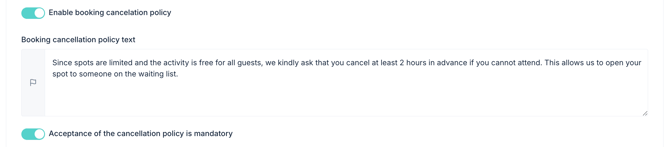
- Enable booking cancellation policy: If you want to display a cancellation policy, activate this switch and enter the policy text.
- Enable Acceptance of the cancellation policy is mandatory checkbox: If activated, guests must check this box to acknowledge the cancellation policy before booking.
Step 7: Assign staff for booking management
- At the Emails of the staff members who manage bookings for this service section, click Add email.
- Enter each email address individually and press Enter.
- Staff members will receive an email notification when a new reservation is received.

Step 8: Save changes
Once all settings are configured, click Save Changes to apply them.
Next steps
After configuring the quota-based booking system, the following actions are recommended:
- Test the booking process: Perform a test reservation as a guest to ensure the configuration works as expected.
- Schedule the activities: Now that the activity information and booking system are complete, add the activities on the Calendar. This ensures they are visible to guests, allowing them to set reminders or make reservations.
Need further assistance?
If you have additional questions or require further assistance:
- Contact us via live chat
- Send a ticket to our Support team
- Visit STAY Academy, our training platform