
Overview
Scheduling activities correctly ensures that the hotel programs are visible to guests. Once the activities and their respective booking systems are configured, they must be placed on the calendar to define when they will take place. This article explains how to use the Calendar tab to schedule activities.
Before getting started
Before scheduling activities, please consider the following:
- Confirm that the activities have already been created and configured in the Activities tab.
- Verify that a booking system has been selected for each activity
- Have the specific start times end times ready for each activity.
Step-by-step guide
Step 1: Access the calendar
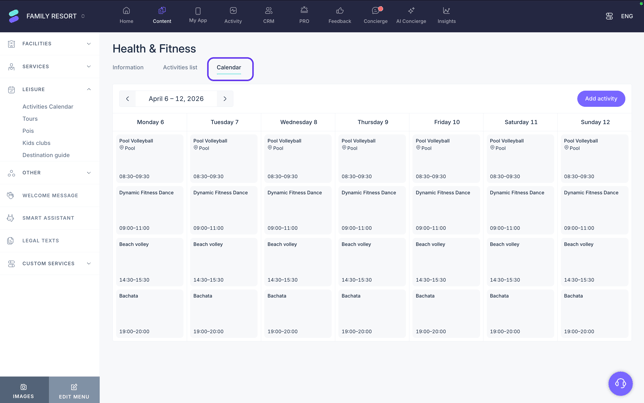
- Navigate to Content > Leisure > Activities calendar in the CMS.
- Select the specific calendar and click the Edit button.
- Click on the Calendar tab.
Step 2: Set up the activity schedule
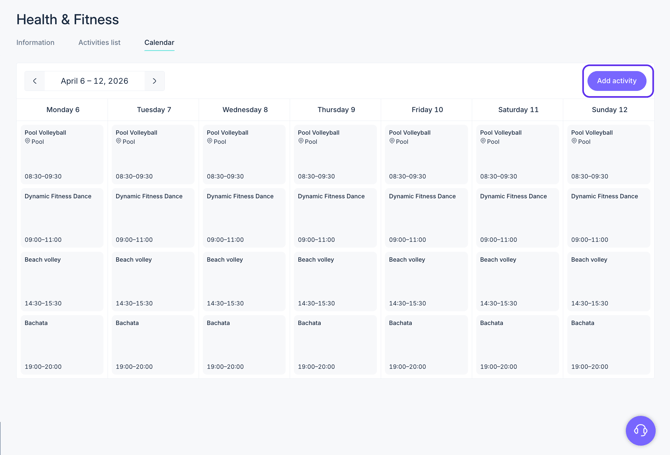
- Click on a specific day in the calendar (e.g., Monday) or click the Add activity button to open the configuration window.
- From the list of created activities on the left, select the activity to be placed on the calendar.
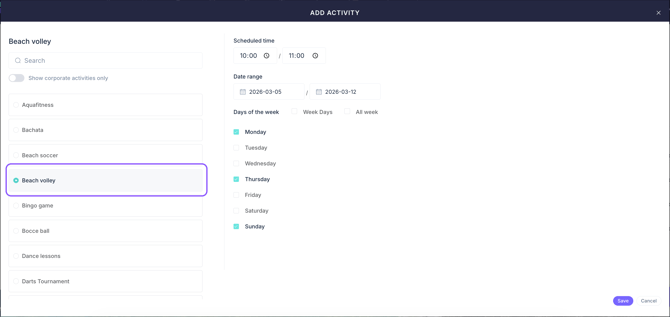
- Enter the Start time and End time in the Scheduled time fields. This defines the duration of the activity.
- Select the start and end dates for which this activity will be available.
- Select the checkboxes for the Days of the week when the activity takes place.
- Click Save.
Step 3: Review the calendar
Once saved, the activities will appear on the calendar at the selected times and days. It is recommended to review the monthly or weekly view to ensure there are no scheduling conflicts.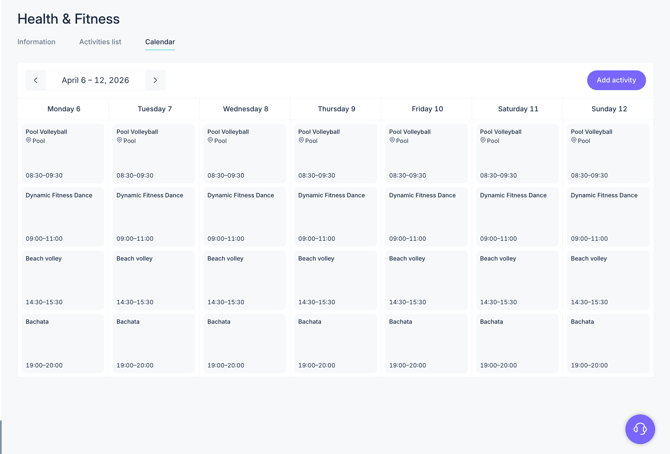
Next steps
After placing the activities on the calendar, the setup is complete. To ensure the best guest experience, consider the following:
- Open the guest app to verify that activities are displayed correctly.
- If a quota-based system was selected, monitor the Activity section to manage guest reservations.
Need further assistance?
If you have additional questions or require further assistance:
- Contact us via live chat.
- Send a ticket to our Support team.
- Visit STAY Academy, our training platform.