
Overview
Once you’ve uploaded and tagged images in your property’s Images section, you can reuse them across the CMS when creating or editing any type of content: services, facilities, widgets, or app sections.
This ensures visual consistency and reduces repetitive tasks, making your content easier to manage.
This article explains how to select images from your property’s library, upload new ones if needed, and use shared images from chains or brand groups.
Before getting started
Before using property images, make sure you:
- Have uploaded the necessary images to Content > Images
- Have created the content where the images will be displayed (e.g., a service, facility, widget, or section)
Step-by-step guide
Step 1: Open the image selector
- In the CMS, go to the item you want to edit. This could be:
- A service, facility or leisure service (e.g., Content > Facilities > Restaurant service)
- A widget (My app > Edit app > Widget A)
- Any other section that includes an image (e.g., Welcome message)
- Click the image frame where you want to insert the image.
This opens the image selector pop-up.
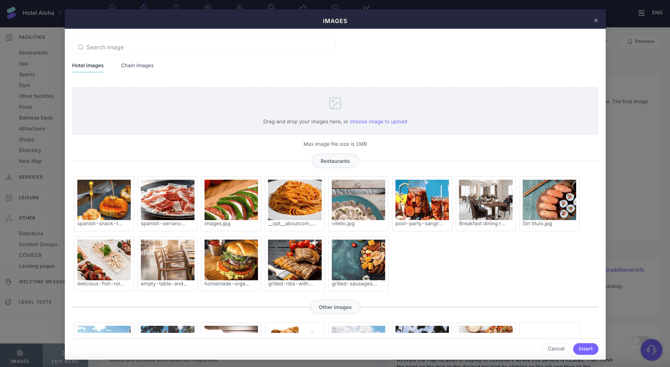
Step 2: Select images from the property
- By default, the Images section for your property will be shown.
- Use tags to filter, or scroll through the list of available visuals.
- Click to select one or more images.
- Click Insert (bottom-right) to add them to the content.
Tip: If your images are properly tagged (e.g., Spa, Restaurants), they’ll be easier to find when building related content.
Step 3: Upload new images (optional)
If you can’t find a suitable image in the list:
- Click Upload image in the selector window
- Choose one or more files from your computer
These images will:
- Be added to your content immediately
- Be saved to your property’s Images section
- Be automatically tagged based on the content type (e.g., if you’re creating a restaurant, it will be tagged as Restaurants)
This ensures they’re available for future use.
Step 4: Explore other image sources (optional)
If your property is part of a group or chain, you may have access to other images sections:
- Chain images: Shared visuals for all properties in the same chain (e.g., logos, banners)
- Brand images: Visual content provided at brand level to ensure brand consistency
You can use these images exactly the same way: browse, select, and insert.
Note: These images sections are managed at corporate level from Settings > Corporate, and require appropriate permissions.
Next steps
Once images are added to your content:
- Use the Preview button to check how they appear in the guest app
- Make sure visuals are aligned with the service or message
- Keep your image section organized with proper tags
- Continue editing other fields like descriptions, opening hours, or booking system
Need further assistance?
If you have additional questions or require further assistance:
- Contact us via live chat
- Send a ticket to our Support team
- Visit STAY Academy, our training platform