
Overview
The Images section allows you to upload, organize, and manage all the images associated with your property. These images can be reused across services, facilities, widgets, and other sections of the app, helping you maintain visual consistency and manage your content more efficiently.
In this article, you’ll learn how to upload images, tag them for easier search, and remove them when they’re no longer needed.
Before getting started
Before managing property images, make sure you:
- Have access to the CMS.
- Have your images ready. As a general guideline, images should:
- Be in JPG format
- Have a horizontal orientation
- Be no larger than 1 MB
- Use the sRGB color space
Note: Image requirements may vary depending on where they are displayed in the app.
You can access your property’s Images section at any time from:
Content > Images (bottom of the CMS side menu)
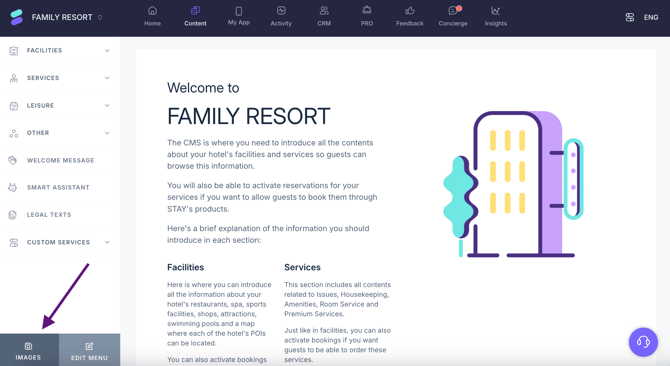
Step-by-step guide
Step 1: Upload images
Once your property is created, you can upload images to the Images section and reuse them across all content types.
Go to: Content > Images
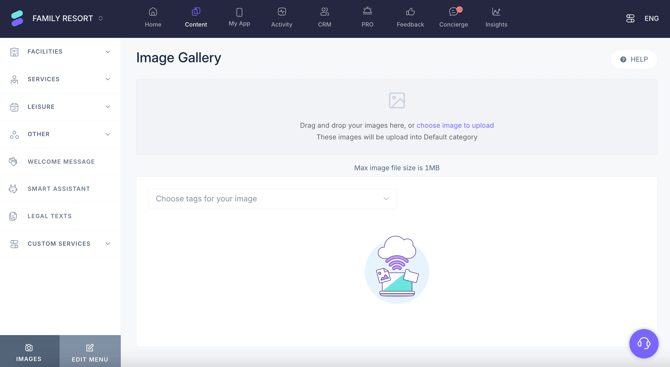
There are two ways to upload images:
Option 1: Drag and drop
- Select one or more images from your computer.
- Click and hold the mouse button.
- Drag the images into the gray upload box in the CMS.
- Release the mouse button.
The images will upload automatically and appear in the list below.
Tip: You can upload multiple images at once by selecting multiple files before dragging them.
Option 2: Choose images from your computer
- Click Choose image to upload inside the gray box.
- A system window will open.
- Select one or more images from your device.
- To select multiple, hold CTRL (or Cmd on Mac) while clicking.
- Click Open.
Uploaded images will appear at the end of the list.
Tip: If your property already has many images, scroll down to find the newly added ones.
Step 2: Tag images
Tags help you quickly locate relevant images when editing content.
You can tag images by content type (e.g., Restaurants, Spa, Room service). When selecting images later, those tagged with the relevant type will appear first.
Example: When creating a restaurant, images tagged as Restaurants will appear at the top of the list.
Important: If you upload an image directly while creating a service or section, it will:
- Be saved to your property’s Images section
- Be tagged automatically based on the content type
To tag an image:
- Go to Content > Images
- Hover over the image you want to tag
- Click Edit
- Select one or more tags
- Click Save
You can add or update tags at any time.
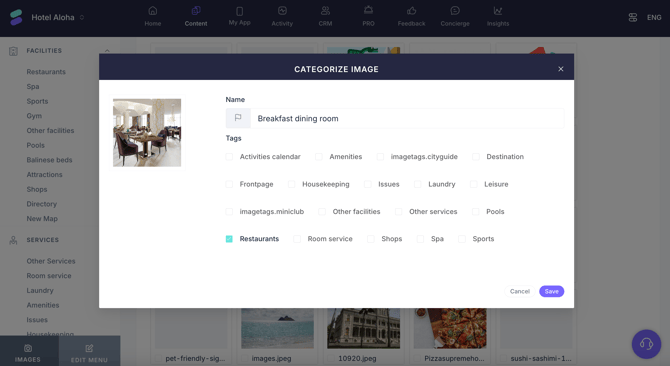
To tag several images at once:
- Go to Content > Images
- Tick the check box next to each image title
- Click the purple button Categorize image that will appear at the top
- Select one or more tags
- Click Save
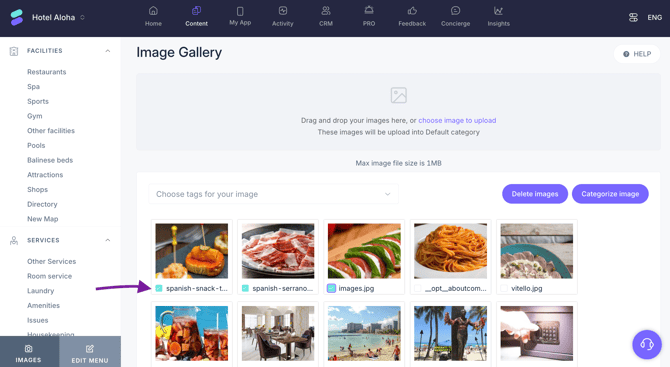
You can use the dropdown list to display only the images associated with a specific tag.
Step 3: Delete images (optional)
If an image is no longer needed, you can remove it from the Images section.
- Go to Content > Images
- Hover over the image
- Click Delete
- Confirm by clicking Yes, delete.
The image will be removed from your property’s image library.
Important: If the image is currently in use, it will remain visible in that service or section. Removing it from the Images section prevents future use but does not affect existing content.
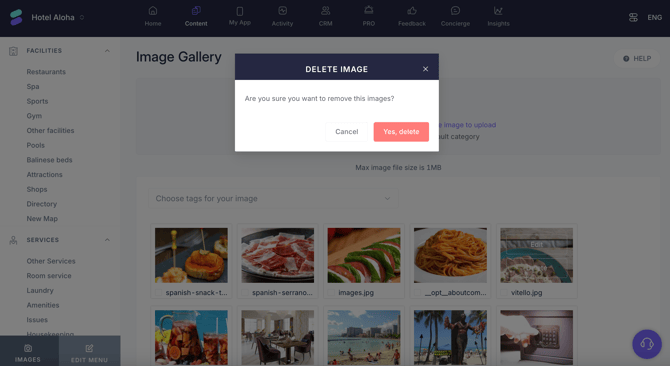
To delete several images at once:
- Go to Content > Images
- Tick the check box next to each image title
- Click the purple button Delete images that will appear at the top
- Confirm by clicking Yes, delete.
Next steps
After managing your property images:
- Use tagged images to save time when creating content
- Keep your Images section organized by removing outdated visuals
- Continue with this article to learn how to use images across services, facilities, and widgets
Need further assistance?
If you have additional questions or require further assistance:
- Contact us via live chat
- Send a ticket to our Support team
- Visit STAY Academy, our training platform