
About
The Hotel notifications section displays data on how users interact with the hotel notifications sent through the guest app. Here you will find data on the number of notification sendouts (targeted audience, messages sent, delivered, opened, and clicked) as well as charts displaying performance over time, and distribution metrics by platform and channel.
This section is composed of four main subsections, explained in detail throughout this article:
-
Overview
-
Performance over time
-
Distribution by platform and channel
-
Performance by notification
Before getting started
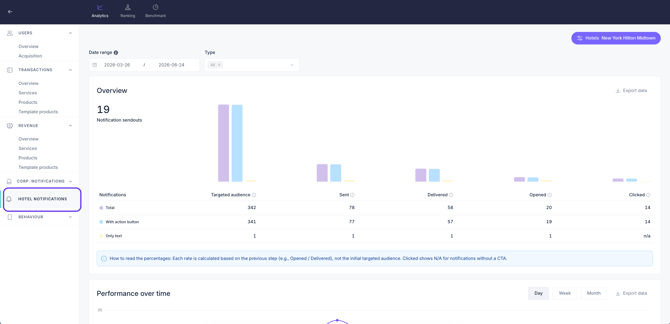
- Make sure you have access to Insights > Analytics. Then, in the left sidebar menu, look for the section: Hotel notifications.
- Ensure the property has past sendouts within your selected timeframes; otherwise, no data will display.
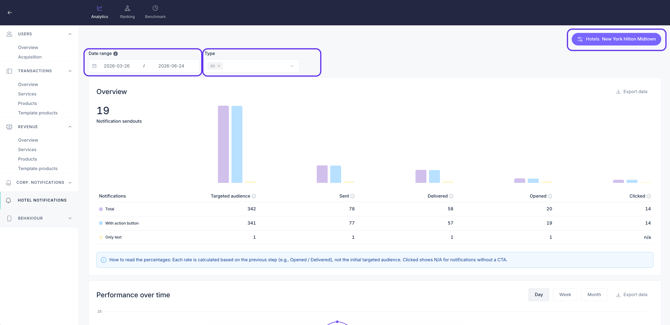
Step 1: Filter the data you want to view
Before analyzing the individual charts, you can modify and filter the overall results displayed across the dashboard using the top filters:
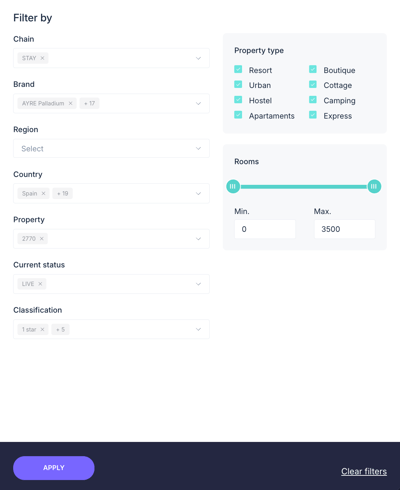
- Chain: Filter data by chain name.
- Brand: Filter data by brand name.
- Region and Country: Filter data by location.
- Property: Filter data by a specific property.
- Current status: Filter data based on the active status of the hotel configuration.
- Classification: Filter data according to hotel star ratings (e.g., 4 stars).
- Property type: Use checkboxes to filter results by operational concepts (resort, urban, hostel, apartments, boutique, cottage, camping, express).
- Rooms (range slider): Filter data by the number of rooms by setting a minimum and maximum range (e.g., Min. 0 to Max. 3500).
2. Filter data by Date range: Click on the calendar icon to select a specific time period. The results shown reflect the filtered time range.
Note: This filter selects notifications based on their send date. However, the metrics shown (such as opens or clicks) include all activity associated with those notifications up to the current moment, even if that activity occurred after the selected date range.
Step 2: Visualize the data
Inside the Hotel notifications section, you will find the following subsections, which consist of various charts and tables:
1. Overview
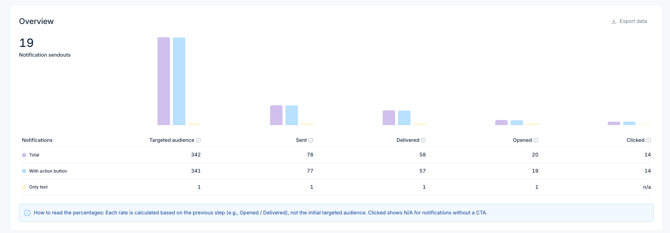
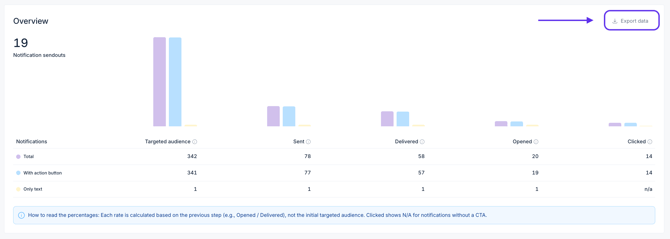
This chart shows total Notification sendouts through a conversion funnel with the following steps:
- Targeted audience: The number of users or devices eligible to receive a notification.
Note: This number is dynamic and can fluctuate based on factors like seasonality, or hotel occupancy. - Sent: The number of notifications successfully pushed from the system.
Note: To be considered eligible, devices must have push permissions enabled (opt-in) and have a valid push token at the time of sendout. - Delivered: The number of notifications successfully received on the users' devices.
Note: This metric indicates that the push providers have successfully accepted the notifications. From that point on, those providers are responsible for delivering the message to the actual devices, not STAY. - Opened: The number of unique devices that opened the notification details at least once. Only the first view per device is counted.
- Clicked: The number of unique devices that clicked the Call-to-Action (CTA) button inside the notification details. Only the first click per device is counted. This metric only applies to notifications with a CTA button; if there is no CTA button, it will show as N/A (not applicable) instead of zero (0).
Note: Keep in mind that the guest app uses two channels: native app and web app. Native apps and web apps pinned to the smartphone home screen receive push notifications, while web apps opened from browsers receive in-app notifications (messages inside the web app itself). All funnel steps sum the data from both channels, except for 2. Sent and 3. Delivered, which only count push notifications sent to native or pinned apps.
This chart breaks down the results into three:
- Total: Represented in purple. This shows the overall metrics across all notifications sent, regardless of their format.
- With action button: Represented in blue. This shows metrics only for notifications that include a call to action button.
- Only text: Represented in yellow. This shows metrics only for plain text notifications.
Note: each rate percentage is calculated based on the previous step (e.g., Opened / Delivered), not the initial targeted audience. Clicked will show N/A for any notifications configured without a CTA.
2. Performance over time
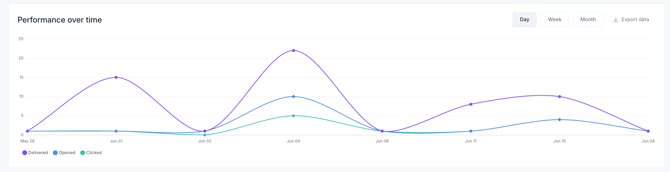
This subsection includes line charts designed to analyze your users' engagement levels.
From here, you can:
- Change the time interval: Toggle between Day, Week, or Month views depending on the period you want to analyze.
- Identify engagement spikes: The chart simultaneously shows the trend lines for the following metrics to easily detect peak impact moments:
- Delivered: The number of notifications successfully received on the users' devices.
- Opened: The number of unique devices that opened the notification details at least once.
- Clicks: The number of unique devices that clicked the call-to-action (CTA) button inside the notification.
3. Distribution by platform and channel
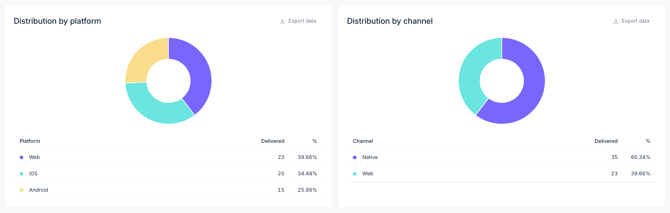
These two donut charts show which platforms and channels your guests are receiving notifications on:
- Distribution by platform: Shows a breakdown of notifications by device type (web vs. mobile) and mobile operating system (iOS vs. Android).
- Distribution by channel: Shows a breakdown of notifications by app channels (Web vs. Native).
4. Performance by notification
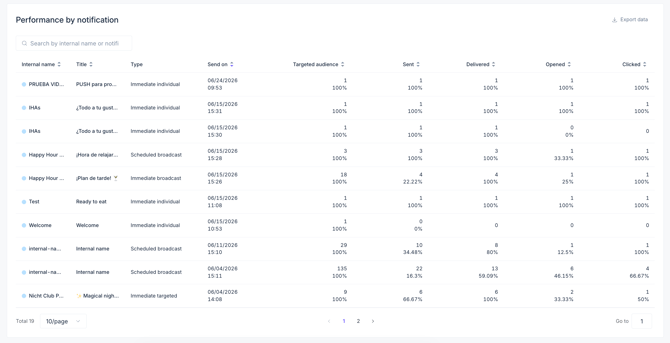
This table tracks the performance of each individual notification. Use the search bar to find specific notifications by internal name or title. The table includes the following columns:
- Internal name. This is the internal name of the notification (for internal reference only, it is not visible to guests).
- Title. This is the headline displayed at the top of the notification.
- Type. This is the notification type (immediate broadcast, immediate individual, scheduled broadcast).
- Sent on. The date and time the notification was sent.
- Targeted audience / Sent / Delivered / Opened/ Clicked. These columns track the funnel metrics and conversion percentages at each stage.
Step 3: Download the data
Once you have reviewed the metrics in the CMS, you can download them if you need to work with the data outside the CMS. Keep in mind that downloads are done individually by subsection.
- Find the Export data button in the top right corner of the chart or section you want to download.
- Click it to download a .csv file directly to your computer with the exact data you are currently viewing.
- Use the data as needed for reports or analysis.
Next steps
Now that you know how to leverage the data from the Hotel notifications section, we recommend taking the following actions to optimize your guest notifications:
- If your Opened metrics are low relative to Delivered, try writing more captivating titles for your next notifications.
- Look at the Clicked values under Performance by notification. Compare notifications with high vs. low CTRs to see what destinations (external web link, hotel service, Instant feedback survey) interest guests most.
- Use Distribution by platform insights to test how your notification text and images look on the devices your guests actually use most.
Need further assistance?
If you have additional questions or require further assistance:
- Contact us via live chat
- Send a ticket to our Support team
- Visit STAY Academy, our training platform