
Overview
Hotel notifications allow you to send important and relevant information to your guests through the guest app. For example, you can inform them if a show is canceled due to rain, promote discounts for spa services, send a reminder about upcoming hotel shows, or let a guest know that their room upgrade is ready.
You can set up different types of notifications in the CMS to be sent to the guest app. These options depend on two factors:
- Timing (When it is sent):
- Immediate: The notification is sent the moment you click the send button.
- Scheduled: The notification is sent at the future date and time you set up.
- Reach (Who it is sent to):
- Individual: The notification is sent to a single guest.
- Broadcast: The notification is sent to guests
Important: Notifications are only sent to guests who have logged into the guest app and have an active stay.
Before getting started
Before creating a notification, we recommend having the following information prepared:
- The internal name, all texts (title and message content), image, and destination content.
- The notification type you will use. By combining the previously mentioned factors (timing and reach), you can choose between three different notification types:
- Immediate individual: Notification sent to a single guest in real time.
Example: "Your lost luggage is now available at Reception." - Immediate broadcast: Notification sent to all guests in real time.
Example: "Due to maintenance, the main pool will remain closed for the next hour." - Scheduled broadcast: Notification sent to all guests, set for a specific date and time in the future.
Example: "The hotel team wishes you a Happy New Year." (Scheduled for December 31st at 23:50).
- Immediate individual: Notification sent to a single guest in real time.
Step-by-step guide for immediate notifications
You can send immediate notifications to either a specific guest or to all guests.
Option 1: Send an immediate individual notification
Step 1: Choose the recipient
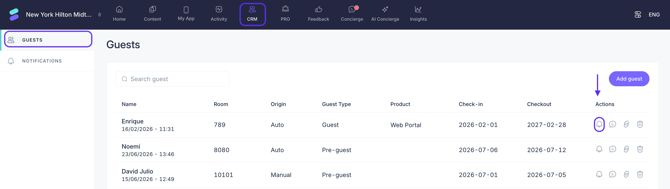
- Go to CRM from the blue top menu.
- From the left-side menu, click on Guests.
- From the list, choose the specific guest to whom the notification will be sent.
- Click on the Bell icon in the last column under Actions.
Step 2: Set up and send the notification
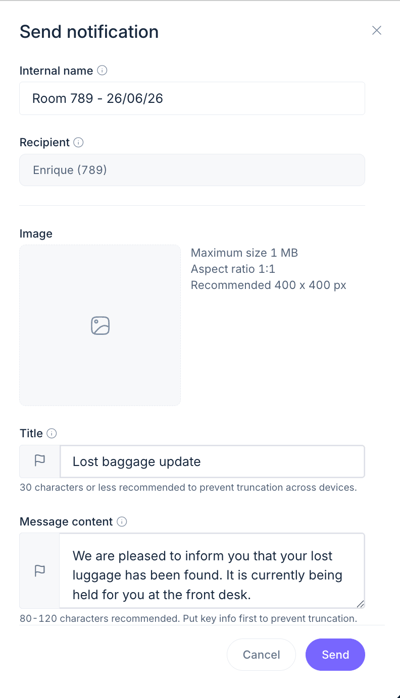
- Add the internal name. This is for internal reference only, it is not visible to guests.
- Upload an image (optional): Maximum size 1 MB, 1:1 aspect ratio, recommended: 400 x 400 px.
- Add a title: This is the headline displayed at the top of the notification.
- Add the message content: This is the main body text of the notification displayed below the title.
- Choose the destination content: This is the internal content or external link for the notification (external website link, external link with video, hotel service, or an Instant Feedback survey).
- Click Send to deliver the notification instantly.
Option 2: Send an immediate broadcast notification
Step 1: Access the Notifications screen
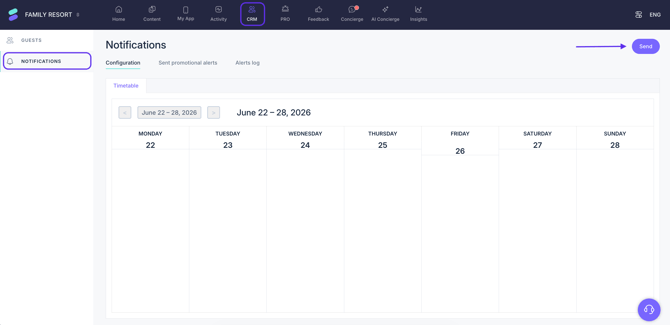
- Go to CRM from the blue top menu.
- From the left-side menu, click on Notifications.
- Click on the Send button (in the top-right corner).
Step 2: Set up and send the notification
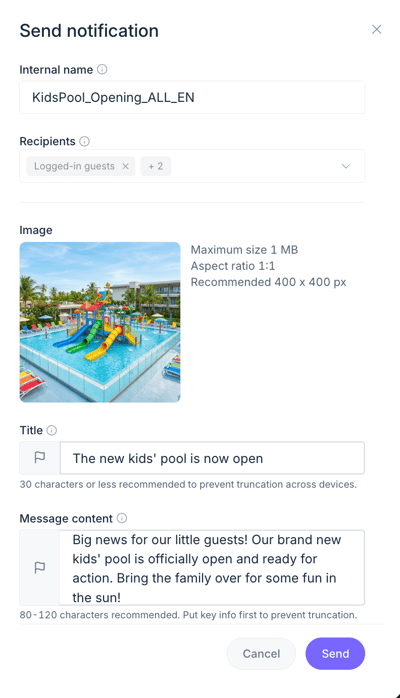
- Add the internal name. This is for internal reference only, it is not visible to guests.
- Upload an image (optional): Maximum size 1 MB, 1:1 aspect ratio (recommended: 400 x 400 px).
- Add a title: This is the headline displayed at the top of the notification.
- Add the message content: This is the main body text of the notification displayed below the title.
- Choose the destination content: This is the internal content or external link linked to the notification (external website link, external link with video, hotel service, or an Instant Feedback survey).
- Click Send to deliver the notification instantly.
Step-by-step guide for scheduled notifications
Scheduled notifications allow you to plan your communication ahead of time. Keep in mind that scheduled notifications can only be sent as a broadcast to all guests, they cannot be scheduled for a single individual guest.
Step 1: Access the Notifications screen
- Go to CRM from the blue top menu.
- From the left-side menu, click on Notifications.
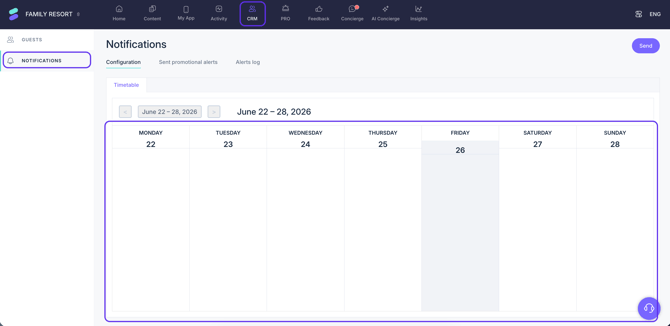
- Click on the desired day in the calendar to schedule the notification. A new configuration screen will open.
Step 2: Set up and schedule the notification
- Add the internal name. This is for internal reference only. It is not visible to guests.
- Upload an image (optional): Maximum size 1 MB, 1:1 aspect ratio (recommended: 400 x 400 px).
- Add a title: This is the headline displayed at the top of the notification.
- Add the message content: This is the main body text of the notification displayed below the title.
- Choose the destination content: This is the internal content or external link linked to the notification (external website link, external link with video, hotel service, or an Instant Feedback survey).
- Set the send time:
- Choose the exact delivery send time.
- Select the date range (the time period during which the notification will remain active).
- Choose the specific days of the week within that date range for the notification to repeat.
- Click the Save button to schedule.
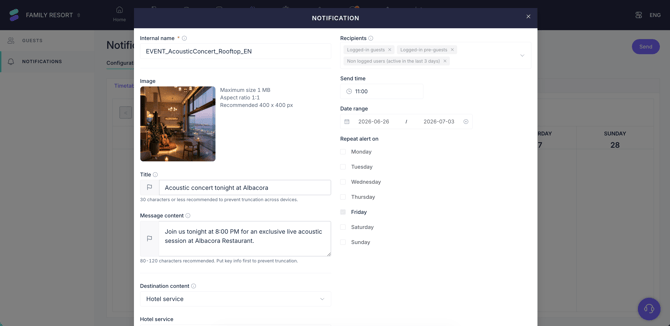
Example: If you set a two-week period as the date range and select Wednesday and Thursday as the recurring days, the notification will only be sent on the Wednesdays and Thursdays within that two-week window on the calendar.
Note: If a scheduled notification needs modifications after creation, it can not be edited. You must delete that specific notification and set up the configuration again.
Next steps
Now that you know how to create and send notifications, you can track their performance using Insights. Once your guests start receiving them, analyze which messages perform best to optimize your future communications. To learn more, check out our article on How to use data from the Hotel notifications section.
Need further assistance?
If you have additional questions or require further assistance:
-
Contact us via live chat
-
Send a ticket to our Support team
-
Visit STAY Academy, our training platform.