
Overview
The external booking system allows you to redirect guests to a third-party reservation system. This setup is useful if you already manage reservations through an external platform but they are displayed via the guest app.
This article explains how to configure the External booking system for a restaurant in STAY.
Note: Since bookings are managed outside of STAY, transaction data for these reservations will not be available in the CMS within the Insights feature.
Before getting started
Before setting up this system, please consider the following:
- Ensure access to the CMS: Content > Leisure > Activities calendar.
- The correct URL for the external booking system.
- Decided whether the external system should open within the app or in the guest’s browser.
Step-by-step guide
Step 1: Access the activities calendar settings
- Navigate to Content > Leisure > Activities calendar in the CMS.
- Hover over the calendar you want to configure.
- Click Edit.
Step 2: Enable the external booking system
- From the Activities list tab, select the activity to be configured with an external booking system.
- Click the Edit button.
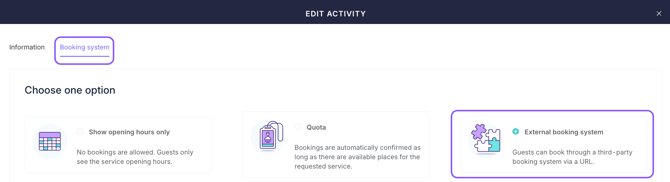
- From the pop-up window, navigate to the Booking system tab.
- Select External booking system.
Step 3: Enter the external booking system URL
-
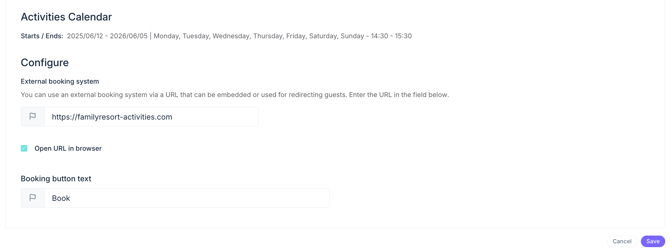
A new text box labeled External booking system will appear.
-
Enter the URL of the third-party reservation system.
Note: You can customize the URL by language by clicking the flag icon.
Step 4: Configure additional options
-
Open URL in browser:
Check this option if you want the guest to be redirected to the external booking system via their web browser instead of opening it within the app.
-
Booking button text:
Enter the text that will appear on the “Book” call-to-action. Keep it short (ideally a single word). Click the flag icon to add translations for all available languages.
Step 5: Save the configuration
Click Save changes at the bottom of the screen.
Next steps
Once the external booking system is configured, you may want to:
- Test the booking flow to ensure the redirection works correctly.
- Make the activities calendar visible on the app home page to start receiving bookings.
Need further assistance?
If you have additional questions or require further assistance:
- Contact us via live chat.
- Send a ticket to our Support team.
- Visit STAY Academy, our training platform.