
Overview
Once all the necessary information about the Activities calendar has been added, the next step is to make it visible on the guest app home page. This ensures that guests can view all activities and their details, activate reminders, and make bookings.
This article explains how to display the activities calendar on the app home page so that guests can access it easily.
Before getting started
Before making your activities calendar visible on the app home page, make sure you:
- Have completed the activities calendar setup under Content > Leisure > Activities calendar.
- Have configured the activities booking system.
- Have access to My app > (Select your app) > Customize app > Edit app.
Important:
If you already have a section on the app home page that links to all calendars, you don’t need to take any additional steps for each new calendar or activity you create. The new calendar or activity will be automatically included.
You would only need to add it separately if you want to highlight it in a banner or another specific widget.
Step-by-step guide
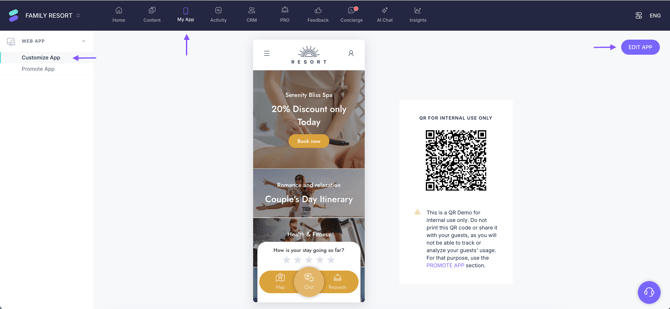
Step 1: Access app customization settings
- Navigate to My app in the CMS.
- Select the correct app if managing multiple properties.
- Click Customize app and then Edit my app.
Step 2: Make the activities calendar visible in the app
You can add your activities calendar to the guest app in one or both of the following ways:
Option 1: Add a link to the activities calendar in the side menu
-
In Edit app, go to the Side menu section.
The side menu shows shortcuts to all sections of your app organizing the contents by categories that you can define.
-
Activate Show side menu to enable the menu in the app.
-
Customize the logo, background color and text color.
-
Click Add group to create a category (e.g., Leisure).
-
Click Add section to link a specific activities calendar, a list of calendars, or a content group. Then, select the following:
- Content source: Hotel.
- Content: From the dropdown menu, select Leisure to show all calendars, or select a specific calendar to show only one.
- Title: Enter a name for the section.
-
Click Save changes.
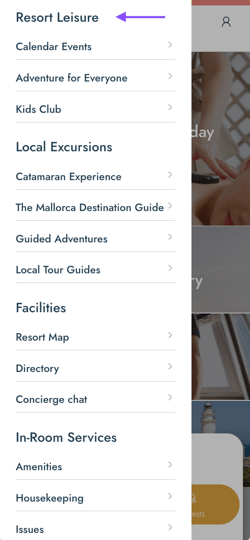
The side menu will now display a direct link to your activities calendar.
Option 2: Add a widget to the home page
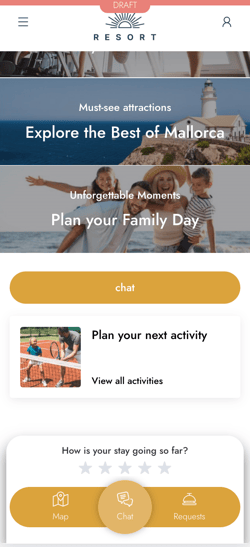
Widgets let you highlight key content on the app home page. Below are the most useful widgets for activities calendars:
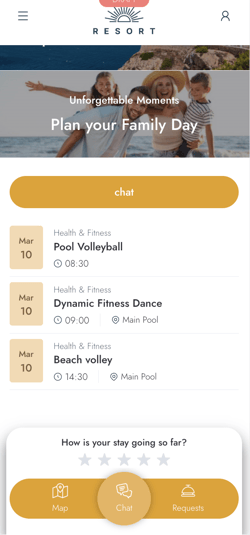
- Calendar widget: Shows your next 3 activities in a calendar view. You can select multiple calendars or a grouping calendar
- Go to Edit my app > Add widget (+ icon).
- Select Calendar.
- Choose Calendar list to show different calendars individually as independent calendars configured from the Activities calendars feature. Choose Calendar grouping to show a calendar-type content group set up from the Content groups feature. The widget design is the same for both options; what changes are the activities displayed based on the specific activities and their scheduling.
- Customize design: title (e.g., Plan your next activity)and the action text (e.g., View all).
- Set widget visibility.
- Click Save changes.
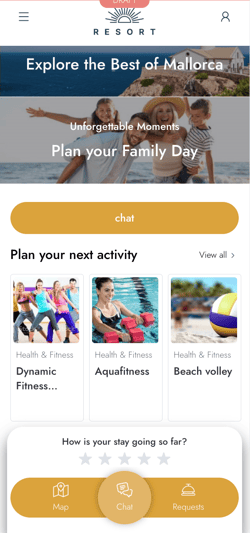
- Dynamic content widget: Displays rotating content (calendars).
- Go to Edit my app > Add widget (+ icon).
- Select Content.
- Choose Services as the Content type.
- From the dropdown menu, select Leisure as Service type or category
- Customize design: title (e.g., Plan your next activity), action text (e.g., Book my spot), and cards orientation.
- Choose the image style: if showing a subtitle and what type.
- Set widget visibility.
- Click Save changes.
- Banner widget: Shows a banner-style card with image or video, title, subtitle, and call to action link.
- Go to Edit my app > Add widget (+ icon).
- Select Banner.
- Choose Hotel as the Content source.
- From the dropdown menu, select Leisure as Service type or category
- Customize design: banner type, image, title and button text and color.
- Set widget visibility.
- Click Save changes.
Next steps
After making the activities calendars visible and accessible in the app, consider the following:
- Monitoring bookings from the CMS to track demand from the Activity section.
- Adjusting widgets or content groups based on guest feedback.
- Using Insights to analyze guest behavior. Go to Insights > Analytics > Behaviour > Home page usage to view data on how guests interact with your app home page. You’ll find metrics such as total sessions, number of clicks per element, and the percentage of users who clicked on each section (Link).
Need further assistance?
If you have additional questions or require further assistance:
- Contact us via live chat
- Send a ticket to our Support team
- Visit STAY Academy, our training platform.