
Overview
Providing clear information about when an activity takes place is key to increasing participation. When the Show opening hours only option is selected, no bookings are allowed; guests will only see the start and end times to know when the activity takes place.
This article explains how to display the hours for a specific activity within the calendar.
Before getting started
Before setting up the opening hours, please consider the following:
- Ensure access to the CMS: Content > Leisure > Activities calendar.
- Confirm the activities have already been created in the Activities tab.
- Opening hours are set per activity, not for the entire calendar. Each activity requires its own schedule configuration.
- Have the specific start and end times for each activity ready before starting the process.
Step by step guide
Step 1: Access the activity settings
- Select Activities calendar from the left-side menu under the Leisure section.
- Select the specific calendar and click the Edit button.
- Click on the Activities list tab to see the list of activities created.
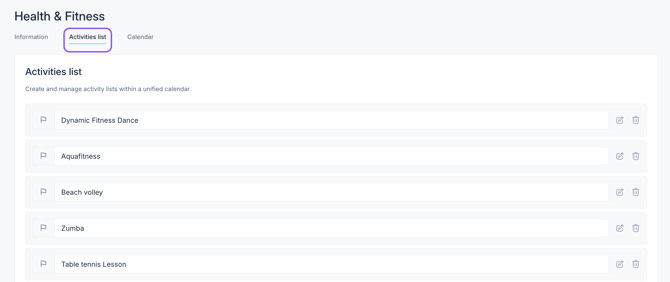
- Look for the activity that requires a schedule and click the Edit (pencil icon) button.

Step 2: Enable the Opening hours option
- In the pop-up window, navigate to the Booking system tab.
- Select the option Show opening hours only.
- Click Save.
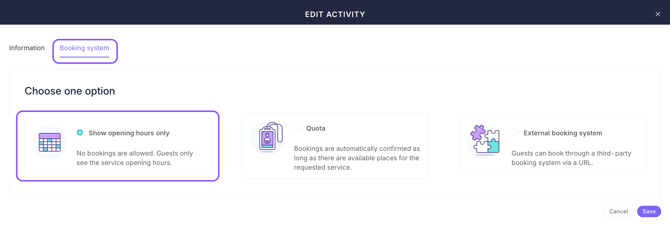
Note: Guests can not book a spot, they will only view the activity hours.
Step 3: Set up the schedule
To define the specific dates and times for the activity:
- Close the pop-up window where you configured the "Show opening hours only" option.
- Navigate to the Calendar tab.
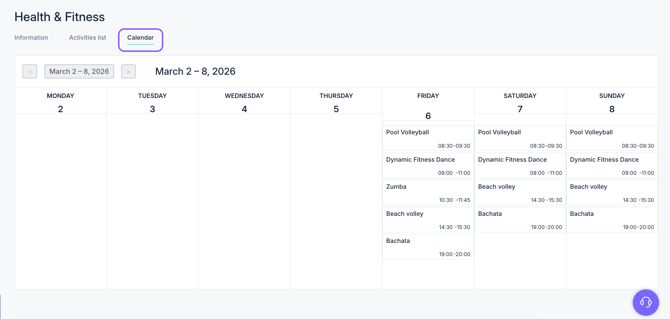
- Click on any day within the calendar view to open the scheduling window.
- On the left-side list, select the activity to be scheduled.
- In the Scheduled time fields, enter the start time and the end time.
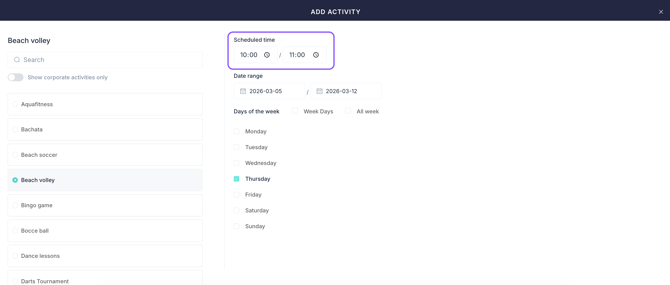
- Set the Date range to determine how long this schedule will remain active.
- Select the days of the week when the activity occurs.
- Click Save.
Next steps
Once the hours are set, the activity will be visible in the app according to the defined schedule. If the activity requires a capacity limit or a reservation process, consider configuring a booking system:
- Learn how to set up the quota-based booking system for an activity.
- Learn how to set up the external booking system for an activity.
Need further assistance?
If you have additional questions or require further assistance:
- Contact us via live chat
- Send a ticket to our Support team
- Visit STAY Academy, our training platform.