
Overview
STAY’s Instant feedback feature allows you to collect real-time guest opinions via short surveys, helping you improve service quality and guest satisfaction.
In addition to automated triggers, you can proactively promote Generic and Facilities & Services surveys to encourage more responses. This article outlines three available options you can use to boost participation.
Before getting started
Before promoting a survey, make sure:
- The Instant feedback feature is active for your property.
- You have created at least one Generic or Facilities & Services survey in the CMS.
- The survey is activated.
Step-by-step guide
You can use one, several, or all of the following options depending on your needs. These are tools to increase visibility and encourage participation.
Note: These methods only apply to Generic and Facilities & Services surveys. Welcome and Checkout surveys cannot be proactively promoted.
Option 1: Add a widget to the front page
You can display a survey directly on the app front page using a widget. This allows guests to easily access it from the home screen at any time.
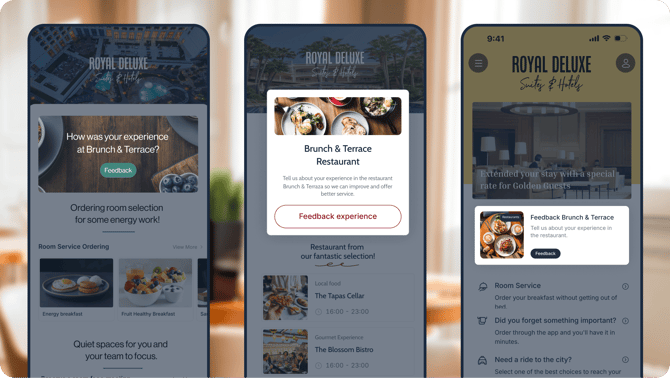
To add the widget:
-
Go to My app > Customize app > Edit app.
-
Click Add widget (+ icon).
-
Choose a widget type.
-
Click Add.
-
Each widget type has a different configuration screen, but the setup logic is the same: you first choose the content or data to display, and then you define the design options.
Note: When choosing the content source, make sure to select Hotel.
-
Activate the toggle button in the upper right corner when ready to make the widget visible on the guest app.
-
When selecting the destination content, make sure to choose the specific Generic or Facilities & Services survey you want to promote.
-
Save changes.
The survey will now appear as a clickable widget on the app’s home screen.
Tip: Use an inviting label like “Give your feedback” to encourage guest participation.
Option 2: Generate a custom link
You can create a custom link for the survey and generate a QR code to display around the hotel (e.g., elevator, lobby, restaurant table, printed materials).
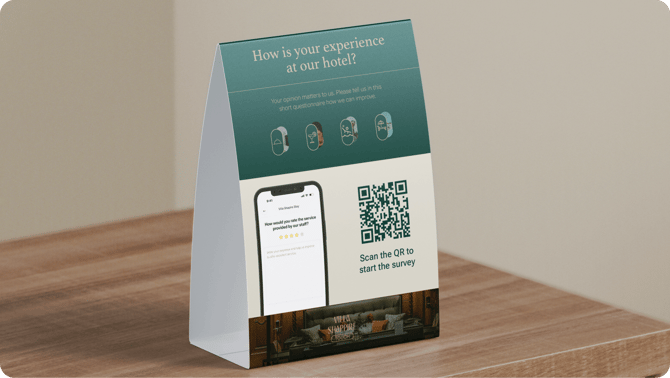
To generate a custom link:
-
Go to My app > Promote app > Custom links.
-
Click Add.
-
Choose the Type from the dropdown menu (e.g., Email, Link, QR Code, Wi-Fi).
Note: Selecting the correct type is important for Insights tracking. You can consult the guest app access source data in Insights > Users > Acquisition. For a user to be recorded in Acquisition, they must be accessing the guest app for the first time through the specific custom link.
-
Assign a Name to the custom link.
Note: As you will be creating different links, we recommend using a clear naming to ensure easy internal identification.
-
Choose the Location, which refers to the place where the link will be situated (e.g., Lobby, Spa, Room)
-
Choose the Destination content, which is the specific screen within the guest app the link will direct to. Make sure to select the desired Instant feedback survey from the list.
-
Click Create link.
You can then download the QR code and add it to any promotional material.
Tip: Place QR codes in high-traffic areas to capture more responses.
Option 3: Send a push notification
You can send a push notification inviting guests to fill out a survey. This is useful for reaching users who may not actively explore the app. Push notifications can be delivered as an immediate broadcast notification, an immediate individual notification, or a scheduled broadcast notification.
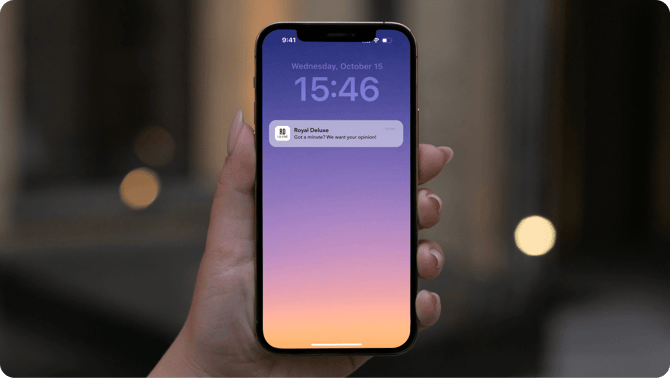
To send an immediate broadcast notification:
- Go to CRM > Notifications.
- Click Send.
- Add the internal name. This is for internal reference only and is not visible to guests.
- Upload an image (optional).
- Add a title.
- Add the message content.
- Under Destination content, select Instant Feedback and then the survey you want to promote.
- Type a message for the button text. Write a short message encouraging guests to complete the survey.
- Click Send to deliver the notification instantly.
Note: Immediate broadcast notifications are delivered as soon as you click Send.
To send an immediate individual notification:
- Go to CRM > Guests.
- Select the guest who will receive the notification.
- Click the bell icon under Actions.
- Add the internal name. This is for internal reference only and is not visible to guests.
- Upload an image (optional).
- Add a title.
- Add the message content.
- Under Destination content, select Instant Feedback and then the survey you want to promote.
- Type a message for the button text. Write a short message encouraging guests to complete the survey.
- Click Send to deliver the notification instantly.
Note: Immediate individual notifications are delivered as soon as you click Send.
To send a scheduled broadcast notification:
- Go to CRM > Notifications.
- Click the desired date in the calendar.
- Add the internal name. This is for internal reference only and is not visible to guests.
- Upload an image (optional).
- Add a title.
- Add the message content.
- Under Destination content, select Instant Feedback and then the survey you want to promote.
- Type a message for the button text. Write a short message encouraging guests to complete the survey.
- Set the send time:
- Choose the exact delivery time.
- Select the date range.
- Choose the days of the week on which the notification should be sent.
- Click Save.
Note: Scheduled broadcast notifications cannot be edited after creation. If you need to make changes, delete the notification and create it again.
Guests who receive the push notification can tap it to open the survey directly in the guest app.
Important: Guests must have push notifications enabled on their device and be logged into the guest app with an active stay to receive push notifications.
Tip: For detailed instructions on configuring each notification type, see How to create and send hotel notifications.
Next steps
Once you’ve started promoting surveys:
- Monitor results from the Stats section (CMS > Feedback > Stats > Overview) to track participation and satisfaction levels.
- Adjust the timing and format of your notifications, or the placement of your widget/custom link, based on guest engagement or operational priorities.
- Keep survey questions clear and short to maximize completion rates.
Need further assistance?
If you have additional questions or require further assistance:
- Contact us via live chat
- Send a ticket to our Support team
- Visit STAY Academy, our training platform.