
Overview
The quota-based booking system allows guests to make reservations for activities within the calendar without requiring manual confirmation. The system automatically manages a defined capacity and stops accepting bookings once the limit is reached. This ensures efficient allocation and prevents overbooking.
This article explains how to manage activity bookings made through the quota-based system in the CMS
Before getting started
Before managing your bookings, please consider the following:
-
Ensure access to the CMS: Activity > Leisure quota.
-
Confirm that the activity has been previously configured with the Quota-based booking system.
Step by step guide
Step 1: View quota-based bookings
- Navigate to Activity > Leisure quota in the CMS.
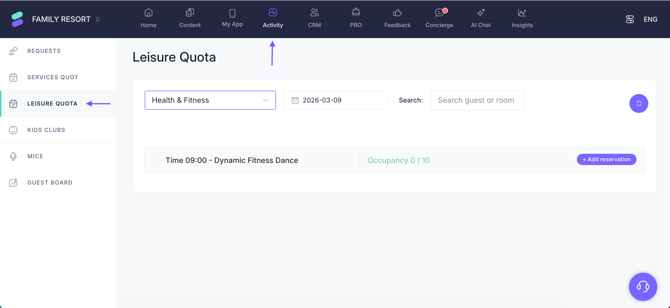
- Select the calendar from the drop-down menu.
- Choose the date to view all confirmed bookings for that day.
- Use the Search field to locate a booking by guest name or room number.
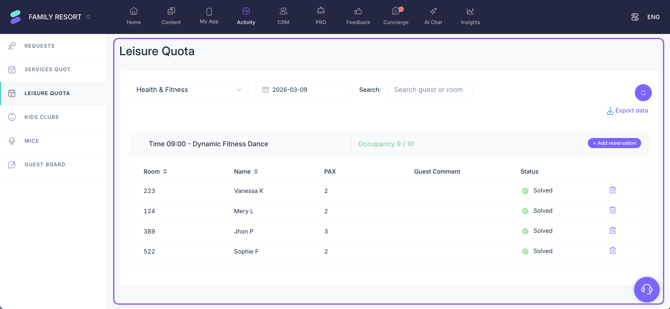
- Bookings are grouped per activity. You can see the occupancy of each time and the capacity limit.
- Look for the reservation in the list by clicking on the specific activity. A dropdown menu will appear showing the reservation details: Room, Name, Pax, Guest comments, and Status.
Step 2: Manage reservations
-
To modify a booking:
Modification is not supported for this system. If a change is required, the existing booking must be deleted and a new one must be created.
-
To cancel a booking:
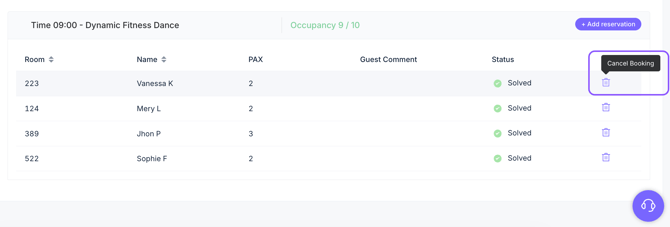
- Locate the reservation in the list by clicking on the specific reservation time group. Once clicked, a dropdown menu will appear showing the bookings made.
- Click the Cancel button (trash icon).
- Confirm the cancellation.
- The guest will receive a cancellation notification.
Step 3: Add a reservation
If a guest requests a booking by phone or in person, you can manually add the reservation in the CMS.
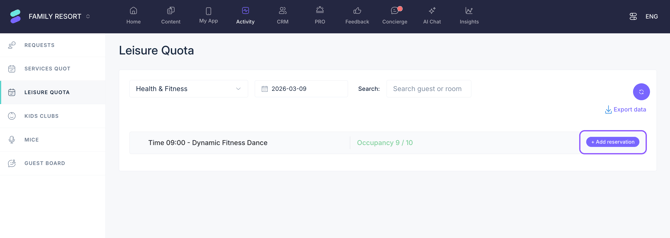
- Click Add reservation.
- Fill in the booking details (guest name, date, time, number of people, etc.).
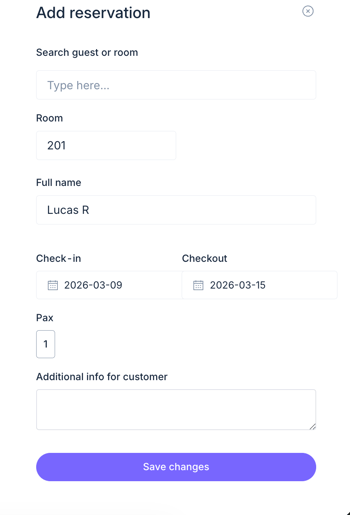
- Click Save changes to confirm the reservation.
This ensures that all reservations, whether made through the app or manually, are properly recorded and managed.
Step 4: Export data
If downloading the booking information is required for meetings, attendance tracking, or for use by the instructor or guide to monitor participation, follow these steps:
- Select the specific calendar.
- Select the date to be exported.
- Click the Export Data icon.
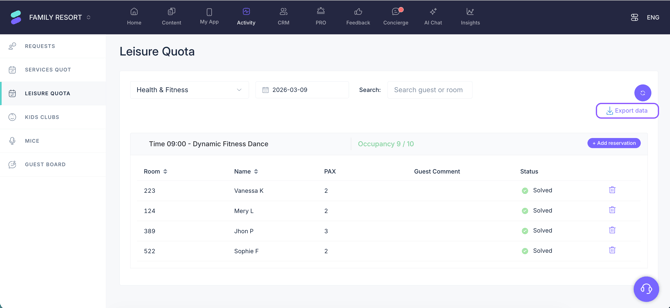
- Choose the preferred format: XLSX or PDF.
- Click the Download file button.
Next steps
After managing quota-based bookings, you may want to:
- Provide the exported file to the instructor or guide to facilitate on-site guest check-in and ensure a smooth start to the activity.
- Analyze the booking data to identify the most popular activities and adjust the capacity or frequency.
- if an activity is canceled or modified, ensure the changes are reflected in the CMS immediately to keep guests informed via the app.
Need further assistance?
If you have additional questions or require further assistance:
- Contact us via live chat
- Send a ticket to our Support team
- Visit STAY Academy, our training platform.