
Overview
The Corporate content feature allows hotel corporate users to create standard content templates that can be applied across brand or chain properties. This ensures consistency and control over how services, facilities, or activities are displayed in each hotel.
You can use this feature to create reusable service templates (e.g., your loyalty program, a signature restaurant, or activity calendar), control which fields are editable at property level, and push updates when needed.
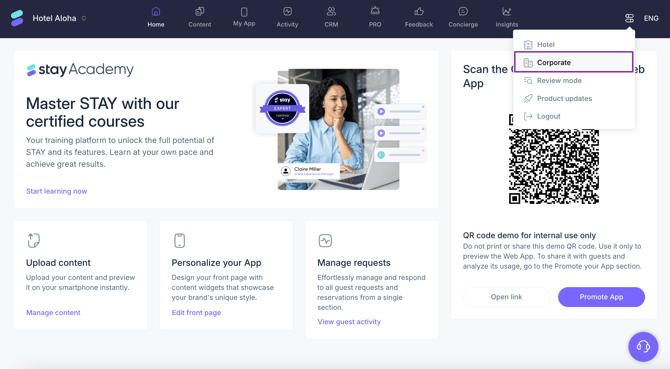
This article explains how to create and manage these templates from the Settings > Corporate > Content section.
Before getting started
Before creating corporate content, make sure you:
- Have hotel corporate permission in the CMS.
- Know which services or facilities need to be standardized across properties.
- Decide which content fields should remain locked for local users and which ones can be edited.
Go to: CMS > Settings > Corporate > Content
Everything created here will be available across your selected chain or brand group.
Step-by-step guide
Step 1: Create a new corporate service
- Go to Settings > Corporate > Content > Select your brand or chain.
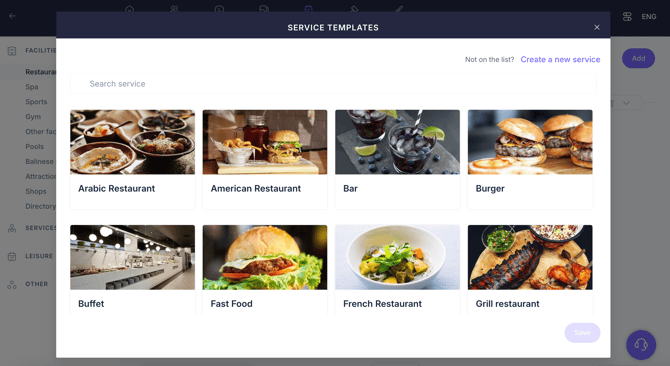
- Select a service type from the left-side menu (e.g. Facilities > Restaurants).
- Click Add.
- Choose one of these options:
- Use a STAY template from the list: templates include a default name, tag, and image. Select a template and click Save to start editing.
- Create a service from scratch by clicking Create a new service in the upper-right corner.
If you selected a template, click Edit on the desired service to continue editing.
Step 2: Fill in the service information
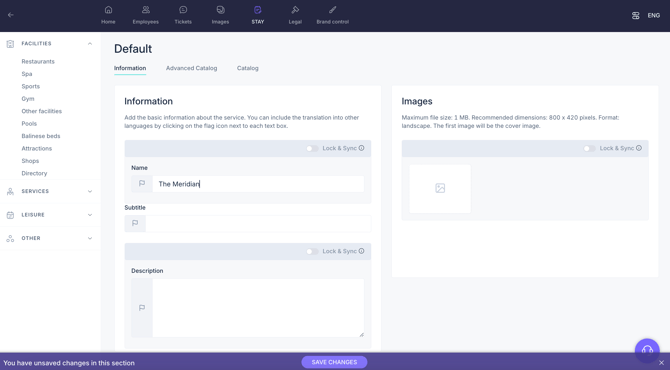
Fill in the standard information for the service as you would normally do for any service type (name, subtitle, description, images, additional information, tags). See full details in this article on restaurants.
These fields will be copied into each property where the template is used.
Tip: Some fields may be left blank considering they would require local staff to filled them (e.g. map location).
Step 3: Set lock and sync options
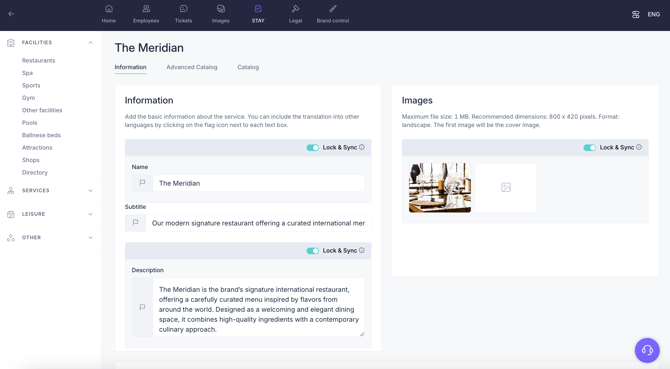
You can decide which fields should be locked and synchronized across properties. These include:
- Name
- Description
- Images
- Additional info: Title and description item
If a field is locked:
- It cannot be edited by the local property.
- It will receive updates automatically if modified from the corporate template.
This is ideal for key brand content that must remain consistent.
Tip: For example, locking the name of an activity lets you track guest participation consistently across properties via Insights analytics.
Step 4: Add a catalog (optional)
You can add a catalog for the service using the advanced catalog or the regular catalog.
Important: catalogs are not locked and synchronized. Properties would get an editable copy of the catalog when using the service template.
Step 5: Save
Once saved, the service template will be available to all properties within the selected chain or brand. Every hotel within the group will be able to select the new corporate service template when adding a service at property level.
Hotels will be able to:
- Use the corporate service as-is (linked to the original template). All user types have access to this option.
- Or download an editable copy (not linked to future updates). This option is only available for Hotel corporate users.
Additional options
Editing a corporate service
If you edit a corporate service:
- Properties that are linked will automatically reflect the changes in all locked fields.
- Properties using editable copies will not be affected.
- New properties using the template from that point forward will see the updated content.
Deleting a corporate service
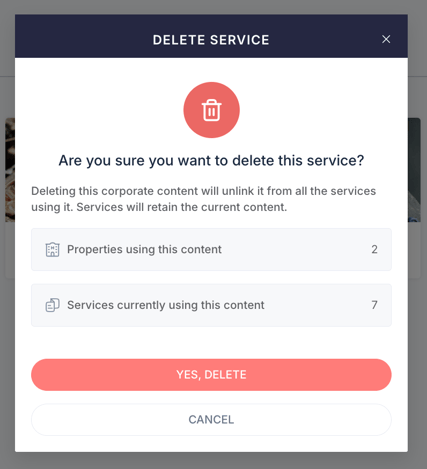
If you delete a corporate service, a warning message will appear showing:
- How many properties are using this service
- How many total instances exist across the chain/brand
If you confirm deletion:
- The template will be removed from the corporate list.
- Services already created in properties will remain, but will lose their link to the original and become fully editable.
Tip: Use Brand control > Content audit to view which services are currently linked to corporate content and access their templates (only for Hotel corporate users).
Deleted corporate services are not permanently removed. Instead, they are moved to the Archived services folder, where they remain available for recovery.
To view archived services, click Show archived services at the top of the screen. From there, you can restore a service at any time by clicking Restore.
Note: If you restore a corporate service that had previously been deleted:
- Links with properties are not automatically restored. If you want to use that corporate service again in those properties, you will need to link it again manually one by one.
- If the service had been configured to appear on the home page, that link will remain after the restoration.
Making a corporate service available on home pages
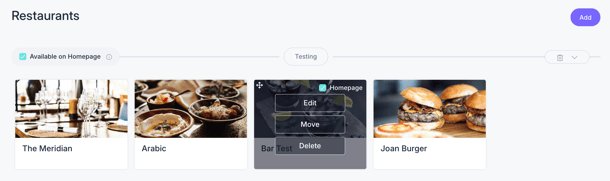
When you access a specific service type from the left-side menu in the CMS (Settings > Corporate > Content > Brand/Chain)—for example, Restaurants—you’ll see a list of the corporate services created for that service type.
From this screen, you can control whether each service is available to be displayed on the home page of the group’s properties:
- To make a specific service available, use the Home page checkbox next to the service.
- To make all services in a category available, use the Available on home page checkbox next to the category name.
This allows properties to include corporate content in their home page widgets.
Next steps
- Learn here how to apply corporate content within an individual property.
- Use Brand control > Content audit to view which services are currently linked to corporate content and access their templates (only for Hotel corporate users).
- Continue optimizing your corporate templates to improve consistency across all hotels.
Need further assistance?
If you have additional questions or require further assistance:
- Contact us via live chat
- Send a ticket to our Support team
- Visit STAY Academy, our training platform