
Overview
If your hotel chain or brand has defined corporate content templates, you can use them to create consistent and standardized services across properties. This ensures that key information remains aligned with group-wide standards while still allowing local teams to adapt certain fields when needed.
In this article, you’ll learn how to use corporate content to create services in a property, what the linking options mean, and how updates are handled.
Before getting started
Before creating services using a corporate content template, make sure:
- Your corporate team has already created at least one content template (CMS > Settings > Corporate > Content).
- You have the appropriate permissions to access and create services at the property level (Hotel corporate, Complex ambassador, or Third-party staff).
- You understand the difference between creating a service from scratch and using a template. Learn more in this article (step 1 of the step-by-step guide).
Step-by-step guide
Step 1: Create a new service in your property
- Access your hotel on the STAY CMS.
- Go to Content and select the service type you need (under Facilities, Services, Leisure, or Other).
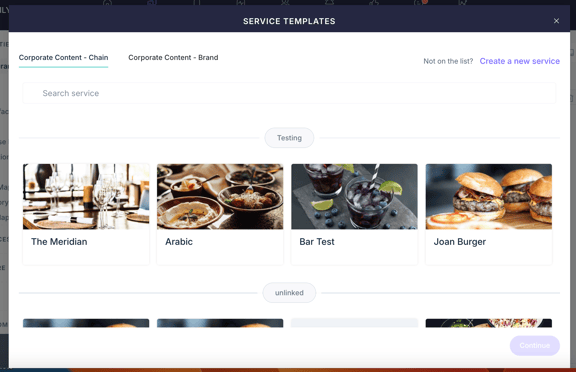
- Click Add. A pop-up window will be displayed.
- At the top of the screen, you’ll see available templates. These may be:
- Corporate content - Chain
- Corporate content - Brand
These templates are shown based on your property’s group configuration.
5. Choose one of the corporate templates available and click Continue.
Step 2: Choose how to use the template
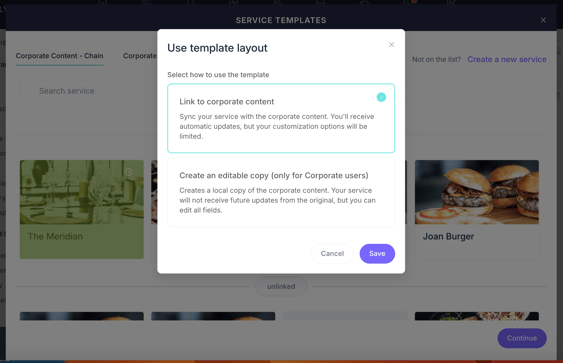
When you select a corporate template, a pop-up window appears with two options:
-
Link to corporate content
The new service will be synced with the original corporate template. Fields marked as Locked and synchronized at the corporate level will be non-editable in the property. These services receive automatic updates if the corporate version is modified.
-
Create an editable copy
This option creates a standalone, editable copy of the corporate template. It does not receive future updates and all fields are editable.
Important: The editable copy option is only available to hotel corporate users.
Choose the option that best fits your operational needs.
Note: If you are not a hotel corporate user, you will only have access to the first option (Link to corporate content).
Step 3: Complete the remaining fields
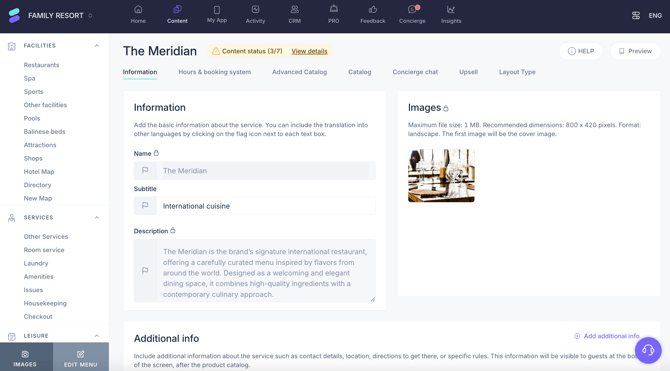
Once the service is created, fill in any editable fields that weren’t locked in the corporate template. For example:
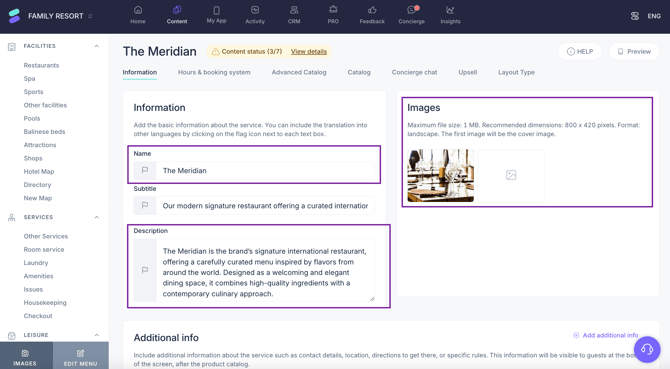
- Add custom subtitle and description
- Add specific details using the additional info section (e.g. local phone number)
- Add map location
To fill in the remaining fields:
- Go to Content and select the corresponding service type on the left-side menu.
- Locate your service in the screen and click Edit.
- Fill in the information under the Information tab. Any fields locked by corporate (e.g., service name or description) will appear with a lock icon and cannot be modified from the property.
- Continue setting up your service in the other tabs (Hours & booking system, Advanced catalog, Concierge chat, etc.).
- A corporate catalog might be available, but it would not be locked nor synchronized with the corporate template. It would only be available as an editable local copy.
Tip: If you need full details on how to set up a service, you can check out our Restaurants guide here.
Example: A brand defines a standardized yoga class as corporate content. The local team at the hotel can enter the start time and instructor name, but cannot change the title or description defined at the corporate level.
Step 4: Identify linked corporate services
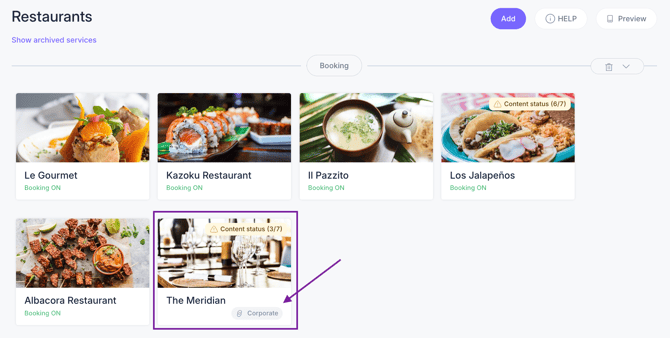
Services created from and linked to corporate templates show a link icon in the CMS service list for quick identification.
- Services created as editable copies have no icon and behave like regular property content.
- You can go to Settings > Corporate > Content to view the original template (accessible only to hotel corporate users).
Additional options
Corporate updates and how they affect properties
If your service is linked to a corporate template:
- Updates to locked fields (e.g., name or image) will automatically apply to all linked property services.
- Updates to unlocked fields will not apply retroactively. They’ll only appear when the template is used again in new services.
If you created an editable copy, no updates from corporate will be applied.
If the corporate team deletes a template:
- A warning will display the number of linked properties and services.
- If confirmed, all linked services in properties will remain intact but will lose the corporate link.
- All fields in the service become fully editable.
Linking a property service to a corporate template
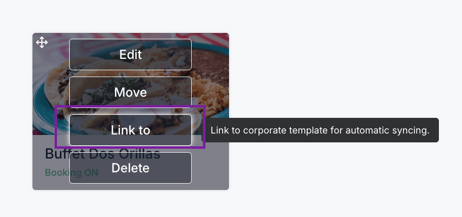
If your property has already created a local service and wants to connect it to a corporate template:
- Access your hotel on the STAY CMS.
- Go to Content and select the service type you need (under Facilities, Services, Leisure, or Other).
- Find the desired service in the list of services created for that type.
- Hover over the existing property service.
- Click Link to.
- Select the desired corporate template.
- Click Continue.
Important: This option is only available to hotel corporate users.
Once linked:
- Locked fields will follow the corporate version.
- Other fields will remain editable locally.
- No existing information is lost. Any configurations previously made to the local service—including bookings or metrics—will remain intact. Only the fields marked as locked and synchronized from corporate will be updated, and these currently include informational fields only, not operational ones.
Monitoring corporate content usage
To review corporate content usage across your group:
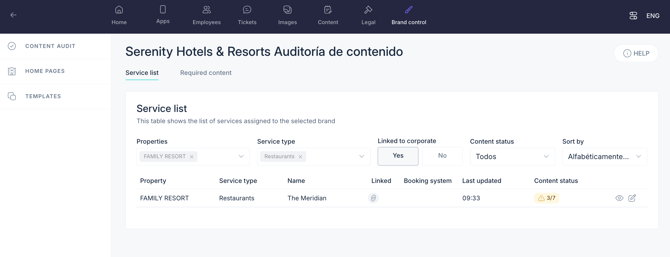
- Go to Settings > Corporate > Brand Control > Content audit.
- See which properties and services are linked to which corporate templates.
- Click on a specific item to view or edit the original template.
This allows your corporate team to maintain consistency while giving you visibility into how templates are being used.
Important: this feature is only accessible for hotel corporate users.
Next steps
Now that you know how to use corporate content in a property:
- Use templates to speed up content creation and ensure consistency.
- Coordinate with your corporate team to request updates or new templates.
- Use Insights to track engagement with services created from corporate content.
Need further assistance?
If you have additional questions or require further assistance:
- Contact us via live chat
- Send a ticket to our Support team
- Visit STAY Academy, our training platform