
Overview
Hotel staff can anchor the STAY staff app to smartphones to facilitate access. Once the staff app is anchored to the home screen, staff will not need to access it multiple times through the browser. Additionally, this allows the reception of push notifications to stay up to date with guest reservations, orders, and requests.
Before getting started
Before anchoring the staff app to the home screen of a mobile device, make sure you have your CMS login credentials (username and password) ready.
Important: If your team was using the legacy staff app (downloaded from the App Store for iOS or Google Play for Android), we recommend that, once you have pinned the new app to your mobile device's home screen (a process explained in this article), you delete the legacy version.
The legacy app will no longer receive maintenance or updates, so it will start to experience issues and the support team will no longer offer assistance.
Please make sure to use only the new version.
Step-by-step guide
Step 1: Open the CMS in a browser
- From a mobile device open the commonly used browser (e.g., Google Chrome, Safari, etc.).
- Enter the following URL in the navigation bar: https://cmshotel.stay-app.com/login
Note: The CMS can not be accessed from a browser (only an instructions screen will be visible) on a mobile device. It will only be operational once it has been anchored to the device's home screen.
Step 2: Read the anchoring instructions
When entering the URL from a smartphone, a screen will appear showing the steps to perform the anchoring, which are the same as explained below:
- Tap the Share icon.
- Select Add to Home Screen.
- Tap Add (top right).
- Return to the device's home screen. The app should now be visible with the STAY icon, ready to be used.
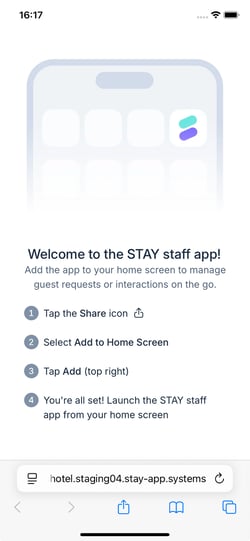
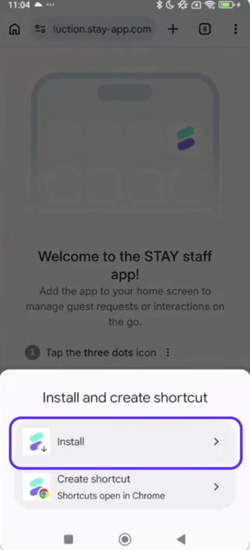
Note: The text on the screen changes slightly depending on the operating system (iOS or Android), but the steps are essentially the same. The differences are:
- The Share icon. On iOS, tap the arrow icon at the bottom of the screen. On Android, tap the three-dot menu in the top right corner.
- Additional installation step (Android only): After tapping Add, Android ask whether you want to Install or Create a shortcut. You must select Install.
Step 3: Open the staff app and activate notifications
- From the smartphone home screen, open the app.
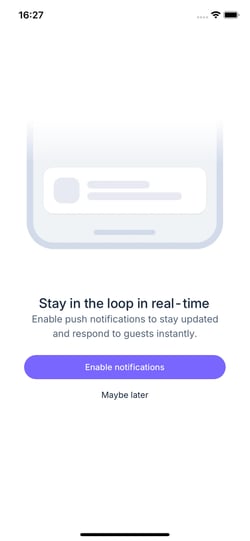
- The first screen displayed will request the activation of push notifications. To do this, click the Enable notifications button.
- A notification from the operating system in use (iOS or Android) will appear on the screen asking for permission to activate notifications. Select Accept/Allow.
Note: You can receive push notifications on both smartphones and tablets. Please note that mobile devices display the mobile app view, whereas tablets will display the desktop CMS version.
Step 4: Log in with credentials
The same login screen used for the CMS on a computer will now be displayed. Use the same login method, whether through Single Sign-On (SSO) with Google or Microsoft, or with a username and password.
Note: Keep in mind that, just like when using the CMS on a computer, the system will require you to log in after a certain period of time. You will need to enter the credentials again; the previous setup steps do not need to be repeated.
Step 5: Choose the view you prefer (optional)
When accessing the CMS on a tablet device, a option is available to switch the display interface. After adding the staff app to the home screen, staff members can toggle between Desktop view and Mobile view.
This flexibility allows staff to select the interface best suited for their operational needs. For example:
- Desktop view: Ideal for features not supported in the mobile interface, such as managing Kids Club activities.
- Mobile view: Recommended for fast-paced operational tasks, such as managing incoming restaurant bookings.
To change the view mode:
- Open the pinned staff app on the tablet. By default, it will open in Desktop View.
- Tap the Settings icon (gear icon) in the top-right corner.
- Select Use mobile view from the drop-down menu. Note that this view only works in portrait orientation (when holding the tablet vertically).
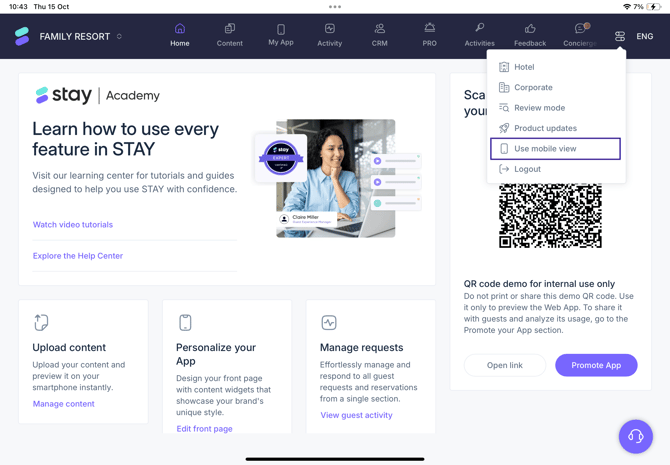
- To return to the desktop interface, tap Use desktop view located in the bottom-left corner.
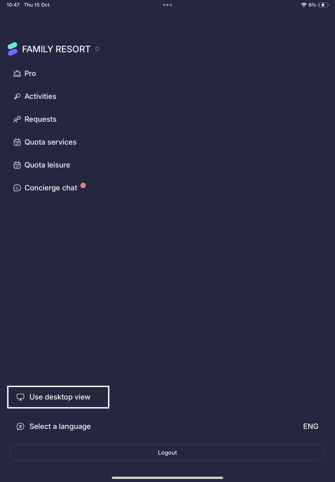
Note: The view switch option is only available on tablet devices and is not available on smartphones.
Next steps
Once the staff app is correctly anchored and you have logged in:
- Test notifications: Place a request, order or reservation to ensure push notifications are appearing correctly on the device screen.
- Explore the staff interface: Familiarize yourself with the mobile version of the CMS to quickly manage orders and requests on the go. Learn more in this article.
- Stay logged in: Remember that while the system may periodically ask for a login for security, keeping the app on the home screen allows for much faster daily access.
Need further assistance?
If there are additional questions or if further assistance is required:
- Contact us via live chat.
- Send a ticket to the Support team.
- Visit STAY Academy, the training platform.