
Overview
The Kids club feature allows you to create and manage child-focused services where guests can register their children securely and provide relevant details. These services are designed to improve operations and safety when offering leisure activities to children at your property.
With this feature, each child is linked to a guardian, and staff can easily manage drop-off and pickup flows. Guests can register multiple children at once and fill out important details such as allergies, special needs, permissions, and restrictions. It’s an ideal feature for delivering a smoother and more secure family experience.
Note: Keep in mind that this feature does not offer a booking system—the focus is on child registration and controlled access to the club.
What can you do with the Kids club feature?
-
Create multiple kids clubs
Add and manage any number of childcare and entertainment areas tailored to different age groups or activities.
-
Share key service details
Add general content such as the name, description, and images of each club, along with practical information like rules, opening hours, location, or dress code.
-
Enable digital registration
Allow families to complete a digital registration form that collects key information about the child—such as allergies, special needs, or personal preferences.
-
Add a legal notice to the registration form
Include a legal disclaimer or terms of service that guardians must read before completing the child’s registration.
-
Manage child drop-off and pickup securely
Allow staff to monitor each child's entry and exit, verify the identity of the guardian picking up the child, and register additional authorized pickup persons if needed.
Key benefits
-
Centralize child and guardian data
Replace paper forms with a secure, centralized digital record of registered children, guardians, and pickup authorizations.
-
Improve operational efficiency
Speed up check-ins, reduce administrative errors, and avoid bottlenecks during peak hours.
-
Boost safety and reliability
Ensure authorized pickups and clear visibility over who is registered in each session, building trust with families.
-
Enhance service visibility
Showcase your kids club services on the app, making them easy to discover for guests with children.
-
Customize each experience
Tailor each kids club to its specific audience and purpose—whether it’s a playroom for toddlers, a creative lab, or an outdoor adventure zone.
How to access the Kids club feature
To create and configure a kids club:
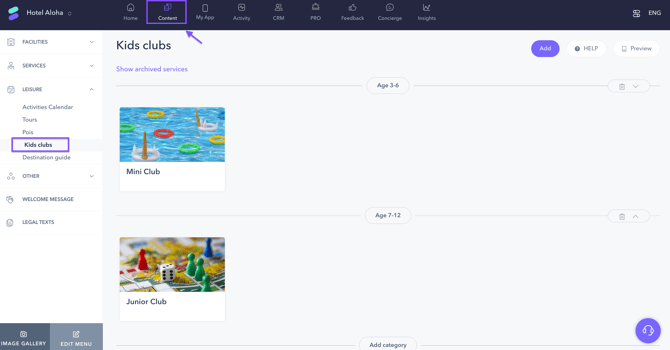
- Log in to the CMS.
- Go to the Content section in the top menu.
- In the left-hand menu, navigate to Leisure > Kids clubs.
From there, you can add a new club and begin configuring its content and settings.
Recommended learning path
To get the most out of the Kids club feature, we recommend following these articles in order:
- How to create a kids club
Learn how to create a kids club and configure its basic details, including description, images, opening hours, and additional information. - How to organize kids clubs using categories
Create categories to group your kids clubs, improving navigation and making it easier for guests to find the right activities for their children. - How to set a timetable for a kids club
Define the kids club opening hours so guests can see when the service is available. - How to set up the registration process for a kids club
Configure the registration form that families must complete before using the kids club, including guardian and child information, authorized pickup persons, permissions, and attendance settings. - How to create a legal notice and attach it to a kids club
Create and attach the legal notice that families must review and accept as part of the registration process. - How to add service rules to a kids club
Define the rules and conditions that families must read and accept before using the kids club. - How to make a kids club visible on the app front page
Increase visibility by highlighting your kids club on the guest app home page. - How to manage a kids club's activity
Learn how to manage daily operations, including registrations, attendance, child check-in and check-out, notifications, and activity reports.
Next steps
Once you understand the feature, you can move on to the article How to create a kids club.
Need further assistance?
If you have additional questions or require further assistance:
- Contact us via live chat
- Send a ticket to our Support team
- Visit STAY Academy, our training platform