
Overview
The Content groups feature allows you to combine multiple services—regardless of their service type or category—into a single section that can be displayed on your app’s home page.
This feature helps you organize content based on real guest needs or experiences, not just the default CMS structure. It also improves service discoverability and allows you to highlight themed or seasonal offerings in a flexible, engaging way.
You can create and manage content groups directly from the CMS, and update them anytime.
What can you do with Content groups?
-
Curate themed service collections:
Group together services that are related by topic, experience, or guest profile. For example:
- Relax & Recharge: Spa, pool access, wellness activities, and healthy restaurants.
- Kids activities: Kids club, children’s pools, kid-friendly dining, and sports areas.
- My room: Room service, laundry, housekeeping, amenities, and maintenance requests.
- Premium services: Gourmet restaurants, VIP check-in, and private transfers.
-
Customize what guests see:
You decide which services to include, the name of the section on the front page (e.g., "Relax & Recharge" or "Family Favourites"), and the order of appearance. This makes it easier for guests to find what’s most relevant to them.
-
Keep your front page dynamic:
Create seasonal or event-based content groups that you can enable or disable anytime. For example:
- Summer Fun
- Romantic Getaways
- Christmas Specials
Key benefits
-
Tailor the guest experience:
Showcase services based on guest needs, trip types, or special offers.
-
Boost visibility of key services:
Group services that deserve more attention—like premium experiences or new offerings—and give them a spotlight on the home page.
-
Improve navigation and discoverability:
Help guests find related services without needing to browse multiple categories or service types.
-
Centralize content management:
Manage grouped content in one place and push changes instantly to the guest app.
How to access the Content groups feature
To start creating content groups:
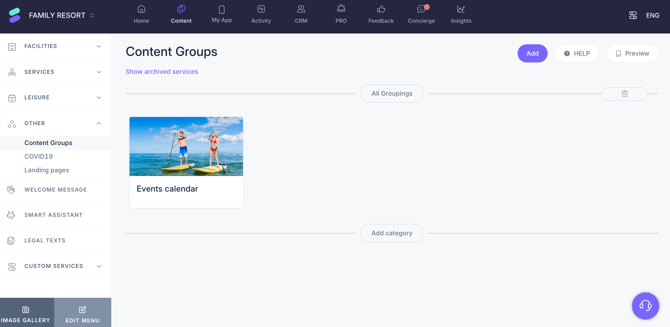
- Log in to the CMS.
- Go to Content in the top menu with the blue background.
- Click Other in the left-side menu and a drop-down menu will open.
- Click Content groups.
From here, you can create, edit, and organize your content groups.
Next steps
Ready to start creating your first content group? Check out the article: How to create a content group.
Need further assistance?
If you have additional questions or require further assistance:
- Contact us via live chat
- Send a ticket to our Support team
- Visit STAY Academy, our training platform