
Overview
Content audit is a tool within the Brand control feature that allows corporate teams to standardize brand guidelines and content of the hotel guest apps across a brand or chain. With Content audit, you define which mandatory content and fields a service must have completed before being shown in the guest app.
Example: Through this tool, the corporate team can specify that for a service to be shown in the guest app, it must have a name, description, image, configured opening hours and be bookable.
What can you do with Content audit?
- Define which mandatory content and fields a service must have completed before being shown in the guest app.
- Know and have a clear overview of the configuration status of hotel services (Completed/Incomplete) without having to do a manual review by entering hotel by hotel.
- Hotels also have visibility into which services require pending basic configurations.
Before getting started
Before using the Content Audit tool, make sure you have the following:
- Access to the CMS: Settings > Corporate > Brand control.
- A corporate user: Other user types (complex ambassador, third party) do not have access.
- A content strategy: Clearly define the minimum required fields and the type of configuration for each service type.
Step by step guide
Step 1: Access Brand control and Content audit
- Access the CMS
- Click the Settings icon in the top right corner.
- In the dropdown menu, select Corporate.
- Go to the Brand control and use the dropdown to select the brand or chain under which the hotels are organized.
- Inside Brand control, in the left side menu, click on Content audit.
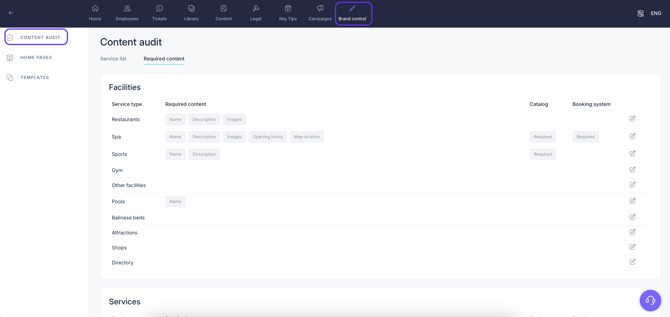
Step 2: Set up the required content
- Go to the Required content tab. From here, you establish the content that a hotel must have configured. This screen is divided into 3 sections: Facilities, Services, and Leisure.
- Choose the service you want to configure. Each of the 3 sections groups different types of services. Find the service you want to configure and click on the Edit icon (pencil icon).
- Select which fields should be required for this service type. A pop-up window will appear with the fields that a service has. If you click on Required, the items will be mandatory for hotels to have. If you click on Optional, it will be optional.
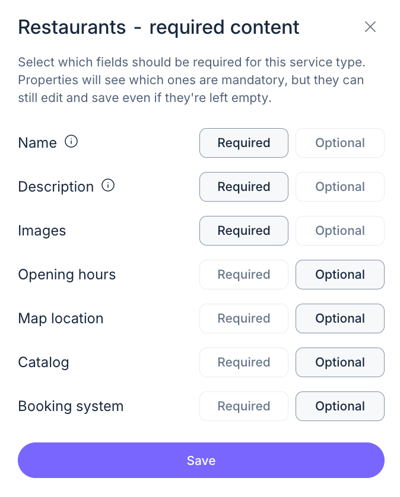
You have the following fields:
- Name: The name of the service (Configured in the service's Information tab).
- Description: The description of the service (Configured in the service's Information tab).
- Images: The service preview images (Configured in the service's Information tab).
- Opening hours: The service's operating hours (Configured in the service's Hours and booking system tab).
- Map location: The location of the service on the map (Configured in the service's Information tab).
- Catalog: The service's product catalog (Configured in the service's Catalog/Advanced Catalog tab).
- Booking system. The service’s booking system (Configured in the service’s Hours and booking system tab).
Notes:
- Properties will see which fields are mandatory, but they can still edit and save even if they are left empty.
- Text fields (Name and Description) will be validated only if the text has been completed in the property's default language.
Step 3: Review the services content status
- Go to the Service list tab.
- Use the filters to view the hotels you need. You have the following filters:
- Properties: Allows filtering by hotel names.
- Service type: Allows filtering by types of services (Spa, sports, restaurants, shops, amenities, etc.).
- Linked to corporate: Allows filtering depending on whether the service is using Corporate content templates. Read this article for more information about the Corporate content tool.
- Content status: Allows filtering based on the service configuration status.
- All: Shows all statuses.
- Completed: Shows hotels that have configured all required fields.
- Incomplete: Shows hotels that have not configured all required fields.
- Not required content: Shows hotels that do not have required content (all fields are optional).
- Sort by: Shows results alphabetically or by the last modification date.
- Analyze the hotels and their information. Once you have applied the necessary filters, the table will display the results. Each row in the table is a hotel. The columns correspond to the following information:
- Property: The name of the hotel.
- Service type: The type of service.
- Name: The name of the service.
- Linked: Shows whether or not the service is linked to corporate content.
- Booking system: The booking system used by the service (Can be On-demand, Quota-based, PRO).
- Last updated: The date of the last edit.
- Content status: The status of the content, which shows the total number of configured required contents compared to the total number of required contents. It appears in green if it is complete, and yellow if it is incomplete.
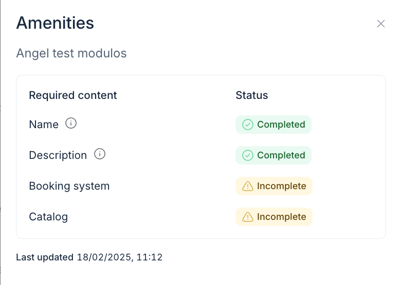
- View more details. If you want to see more details about the configuration status of the required fields, click the View icon. A pop-up window will appear where you can see which of the required fields are completed (Completed in green) and which are not completed (Not completed in yellow) by the hotel.
If the service is linked to corporate content, the name of the specific corporate content template being used will also appear here.
The last modification date also appears at the bottom. - Go to the service. If you click the Edit icon (pencil icon), the system will take you directly to the editing screen of the service in question, specifically to the Information tab.
Step 4: See the property view
- Go to the Content section.
- Once inside, select the feature (Restaurants, Spa, Shops, Amenities, etc.) or module where the service is located.
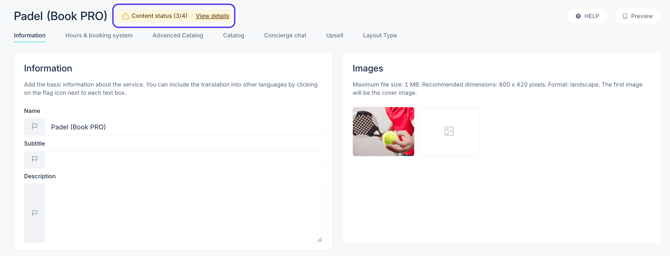
- Find the service you need to review. An informative banner will appear on the service card showing the configuration status of the required fields. This banner displays the number of configured required fields out of the total required fields. It appears in yellow when the configuration is incomplete. Once all configuration and required fields are complete, the banner will disappear.
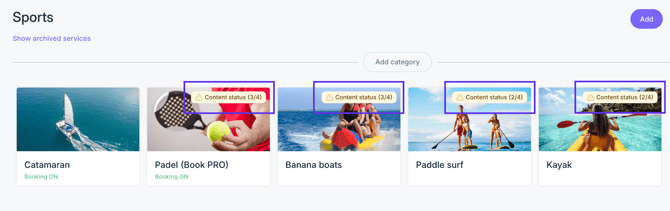
- Click the Edit button. Once inside the service, this informative banner also appears at the top. Right next to it, you will see a View details button. Click it, and a pop-up window will appear with complete information about the status of the required contents. This explains to the hotels what this information means.
Important: The informative banner can only be seen by users with the following permissions (Read this article on users and permissions):
- Read and write permission
- Read, write, and manage bookings permissions
Next steps
- Track content status: Regularly check the Service List tab (Settings > Corporate > Brand Control > Content Audit) to see which required fields hotels have completed or left incomplete.
- Communicate required fields: Ensure hotel teams are aware of the mandatory content fields and explain the information that appears in the status banner within the services.
- Explore other corporate tools within Brand Control: Learn about and use the corporate templates for the guest apps' home page.
Need further assistance?
If you have additional questions or require further assistance:
- Contact us via live chat
- Send a ticket to our Support team
- Visit STAY Academy, our training platform.