
Overview
When guests submit a booking, request, or order using the on-demand booking system, they must be managed by hotel staff. Staff need to either confirm or reject manually.
This article explains how to manage bookings made through the on-demand system in the CMS, via email, and with the staff app.
Management in the CMS
Every time a guest submits a booking, request, or order using the on-demand system, it will appear in the CMS under the Requests list in the Activity section.
Step 1: Access the requests list
- Navigate to Activity > Requests in the CMS.
- Look for the booking, request, or order to manage. New and unprocessed items will have a New status and will be highlighted in light blue.
- In the Requests section, view items from all hotel services that use the on-demand booking system. To view specific items, use the service type filters.
- Filter by date and status, or search for an item by guest name.
- Click the Edit icon (pencil icon) next to the item.
Step 2: Manage the request
In the pop-up window, view the details of the booking, request, or order. The following options are available:
For a Reservation with specific date and time (Restaurants, Spa, Room service, Sports, Tours, Pools, Attractions, and Balinese beds):
- Approve:
- Click Approve.
- (Optional) Add a comment in the text box.
- Click Save changes. The guest will receive a notification confirming the booking, request, or order.
- Reject:
- Click Reject.
- (Optional) Add a comment explaining the rejection. This note is only visible to staff.
- Click Save changes. The guest will receive a notification about the cancellation.
- Send a message without confirming or rejecting:
- Type a message in the comments box
- Click Save changes.
For an Immediate request (Amenities, Issues, Housekeeping, and Laundry):
- Change the status:
- Select the corresponding status (New, pending, in progress, solved).
- Click Save changes.
- Send a message:
- Type a message in the comments box.
- Click Save changes.
When returning to the Requests list, the status will update based on the action taken.
Tip: If a guest submits a booking, request, or order by phone or in person, manually add it in the CMS:
- Click Add reservation/Add request.
- Fill in the details (guest name, date, time, number of people or items, etc.).
- Click Book/Request to confirm.
This ensures that all bookings, requests, and orders, whether submitted through the guest app or manually, are properly recorded and managed.
Management via email
If email notifications have been configured for the on-demand system, staff will receive an email each time a guest submits a booking, request, or order.
Step 1: Access the email notification
- Open the email inbox and look for the notification from STAY.
- The email contains details such as:
- Guest name
- Room number
- Check-in and checkout dates
- Date, time, and details of the booking, request, or order
Step 2: Manage the request
Click the Manage booking button in the email to redirect to a management page. Choose one of the following options:
For a Reservation with specific date and time (Restaurants, Spa, Room service, Sports, Tours, Pools, Attractions, and Balinese beds):
- Approve:
- Click Approve.
- (Optional) Add a comment in the text box.
- Click Send. The guest will receive a notification confirming the booking, request, or order.
- Reject:
- Click Reject.
- (Optional) Add a comment explaining the rejection. This note is only visible to staff.
- Click Send. The guest will receive a notification about the cancellation.
- Send a message without confirming or rejecting:
- Type a message in the comments box
- Click Send.
For an Immediate request (Amenities, Issues, Housekeeping, and Laundry):
- Change the status:
- Select the corresponding status (New, pending, in progress, solved).
- Click Send.
- Send a message:
- Type a message in the comments box.
- Click Send.
Management with the staff app
If hotel staff use the STAY staff app, bookings, requests, and orders can also be managed from smartphones.
Step 1: Open the CMS in a browser
- From a mobile device open the commonly used browser (e.g., Google Chrome, Safari, etc.).
- Enter the following URL in the navigation bar: https://cmshotel.stay-app.com/login
Note: The CMS can not be accessed from a browser (only an instructions screen will be visible) on a mobile device. It will only be operational once it has been anchored to the device's home screen.
Step 2: Read the anchoring instructions
When entering the URL from a smartphone, a screen will appear showing the steps to perform the anchoring, which are the same as explained below:
- Tap the Share icon.
- Select Add to Home Screen.
- Tap Add (top right).
- Return to the device's home screen. The app should now be visible with the STAY icon, ready to be used.
Note: The text on the screen changes slightly depending on the operating system (iOS or Android), but the steps are essentially the same. The differences are:
- The Share icon. On iOS, tap the arrow icon at the bottom of the screen. On Android, tap the three-dot menu in the top right corner.
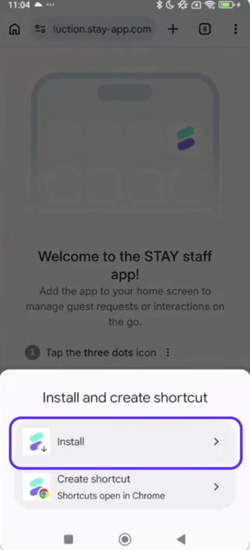
- Additional installation step (Android only): After tapping Add, Android ask whether you want to Install or Create a shortcut. You must select Install.
Step 3: Open the staff app and activate notifications
- From the smartphone home screen, open the app.
- The first screen displayed will request the activation of push notifications. To do this, click the Enable notifications button.
- A notification from the operating system in use (iOS or Android) will appear on the screen asking for permission to activate notifications. Select Accept/Allow.
Note: You can receive push notifications on both smartphones and tablets. Please note that mobile devices display the mobile app view, whereas tablets will display the desktop CMS version.
Step 4: Log in with credentials
The same login screen used for the CMS on a computer will now be displayed. Use the same login method, whether through Single Sign-On (SSO) with Google or Microsoft, or with a username and password.
Note: Keep in mind that, just like when using the CMS on a computer, the system will require you to log in after a certain period of time. You will need to enter the credentials again; the previous setup steps do not need to be repeated.
Step 5: Manage the request
- Tap the Requests section from the left-side menu.
- Find the booking, request, or order to manage and tap on it.
- Choose one of the following options:
For a Reservation with specific date and time (Restaurants, Spa, Room service, Sports, Tours, Pools, Attractions, and Balinese beds):
- Approve:
- Go to the Information tab.
- Click Approve.
- (Optional) Add a comment in the text box.
- Click Save changes. The guest will receive a notification confirming the booking, request, or order.
- Reject:
- Go to the Information tab.
- Click Reject.
- (Optional) Add a comment explaining the rejection. This note is only visible to staff.
- Click Save changes. The guest will receive a notification about the cancellation.
- Send a message without confirming or rejecting:
- Go to the Messages tab.
- Type a message in the comments box
- Click Save changes.
For an Immediate request (Amenities, Issues, Housekeeping, and Laundry):
- Change the status:
- Go to the Information tab.
- Select the corresponding status (New, Pending, In progress, Solved).
- Click Save changes.
- Send a message:
- Type a message in the comments box.
- Click Save changes.
The guest will receive a push notification with the updated status and any comments sent. When returning to the Requests list, the status will update based on the action taken.
Next steps
Once the property starts managing on-demand bookings, requests, and orders, consider:
- Training staff on best practices for handling guest requests efficiently.
- Reviewing the workflow to ensure the process is smooth for both staff and guests.
- Enabling Concierge chat to assist guests with inquiries directly from the app (link).
Need further assistance?
If additional questions arise or further assistance is required:
- Contact support via live chat.
- Send a ticket to the Support team.
- Visit STAY Academy, the training platform.