
Overview
Instant feedback allows guests to share their opinions about their stay by completing short surveys in the guest app.
Depending on how the property has configured the feature, surveys may appear automatically at different moments during the stay, remain permanently available, or be displayed when guests visit a specific service or facility.
Guest responses are sent directly to the property, allowing staff to identify issues, improve the guest experience, and take action when needed.
Before getting started
Before guests can use Instant feedback, make sure:
- Instant feedback is enabled for your property.
- At least one survey is active.
- The survey is visible to the intended audience according to its configuration.
- If the survey requires guests to sign in, they must log in to the guest app before submitting their responses.
Step-by-step guide
Step 1: Access a survey
Guests can access surveys in different ways depending on the survey type:
- Welcome surveys appear automatically according to the configured trigger.
- Facilities & Services surveys appear on the corresponding service or facility page and may also be shown proactively.
- Generic surveys remain available at all times.
- Checkout surveys appear before the guest checks out.
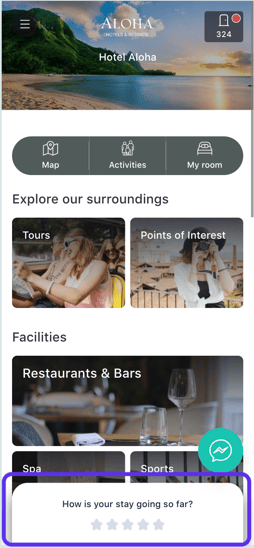
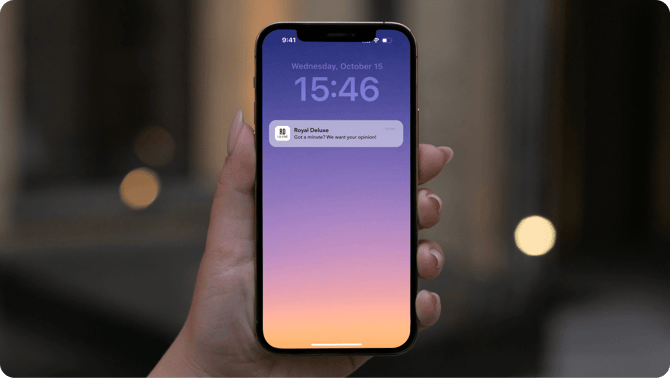
For Welcome, Facilities & Services, and Checkout surveys, guests may also receive a push notification when the survey becomes available, provided the property has enabled this option and notification permissions have been granted on the device.
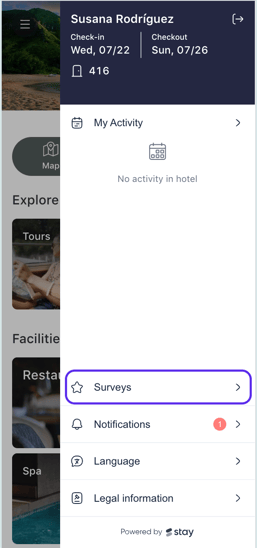
Guests can also access all their surveys from the Surveys section in the guest app menu, where they can view both available and completed surveys.
Step 2: Complete a survey
Guests complete each survey by selecting a score (stars) for every question.
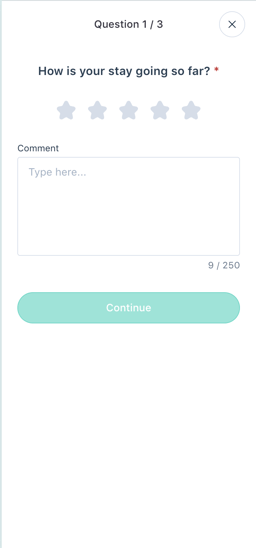
Depending on the survey configuration:
- Required questions must be answered before continuing.
- Optional questions can be skipped using the Skip question option.
- Comment fields may be available after each question.
- If comments are configured as required, guests must enter a comment after selecting a score before they can continue.
After completing all required questions, guests can submit the survey.
Step 3: View the confirmation message
After submitting the survey, guests will see a thank-you message.
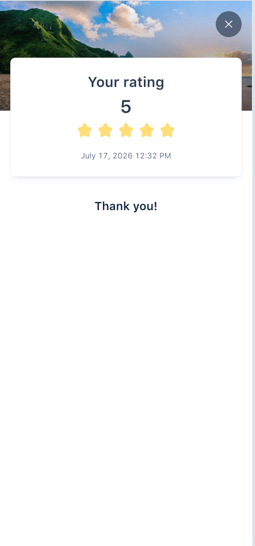
The property can configure different thank-you messages depending on the overall survey score.
Next steps
After guests submit a survey, property staff can review the responses from the CMS. To learn more, see How to manage survey responses.
Need further assistance?
If you have additional questions or require further assistance:
- Contact us via live chat
- Send a ticket to our Support team
- Visit STAY Academy, our training platform