
Overview
Creating a calendar allows the hotel to organize and display daily programs, children’s entertainment, or evening shows, making them easily accessible for the guests.
This article explains how to create an activities calendar in the CMS.
Before getting started
Before creating a calendar, please consider the following:
- Ensure access to the CMS: Content > Leisure > Activities calendar.
- It is essential to define which calendars will be created. If the hotel offers activities with different themes or aimed at different audiences, the activities should be organized into separate calendars.
Step-by-step guide
Step 1: Access the Activities calendar feature
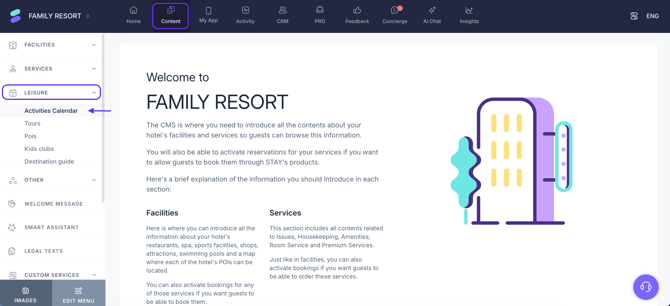
- Log in to the CMS and navigate to the Content section in the top menu.
- Go to the Leisure section in the left-side menu.
- Click on Activities calendar.
Step 2: Create a new calendar
- Click the Add button.
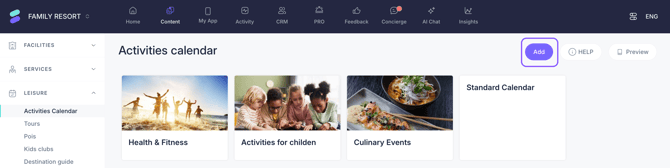
- Select a template from the available options:
- Standard calendar
- Activities for adults
- Activities for teenagers
- Activities for children
- Night events
- For this tutorial, select the Standard calendar.
Note: Selecting a template automatically configures the calendar with a predefined name and tag. If the available templates do not meet the specific requirements, select the Standard template.
Important: The Night events calendar and the Dress code calendar feature a unique layout in the app. All other calendar types share the same visual design.
Step 3: Fill in the calendar information
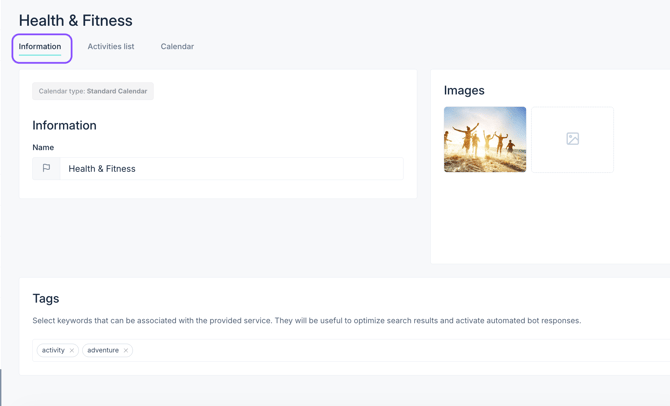
Once the calendar is created, the screen will display three main tabs. Start with the Information tab to define the general details:
- Enter the name of the calendar. Examples include “Daily Entertainment,” “Family activities” or “Fitness & Wellness.”
- Upload the images that will represent the calendar. Select the background image for the calendar to be displayed in the app. While not mandatory, adding an image is highly recommended to enhance the visual presentation of the schedule.
- Add tags to help categorize and filter the activities.
Next steps
Once the general information for the calendar is complete, the next step is creating activities for the calendar.
Need further assistance?
If you have additional questions or require further assistance:
- Contact us via live chat
- Send a ticket to our Support team
- Visit STAY Academy, our training platform.